
If you are Selling tickets via Apple Pay with Tickets Commerce, Stripe will determine whether to show Apple Pay based on the requirements in their Apple Pay documentation.
If your site has met the requirements, but Apple Pay is not showing at Checkout, try the following steps:
Check iOS and macOS versions
Be sure that the device is running the latest version of Safari and check the iOS and macOS versions.
- iOS 9 and above
- macOS Sierra or newer
Tickets Commerce Settings
Confirm that Stripe is connected according to the steps in the article How to Set Up Tickets Commerce: Connecting to Stripe
Confirm Checkout Type is Accept credit card payments and additional payment methods configured in Stripe under Tickets > Settings > Payments > Stripe
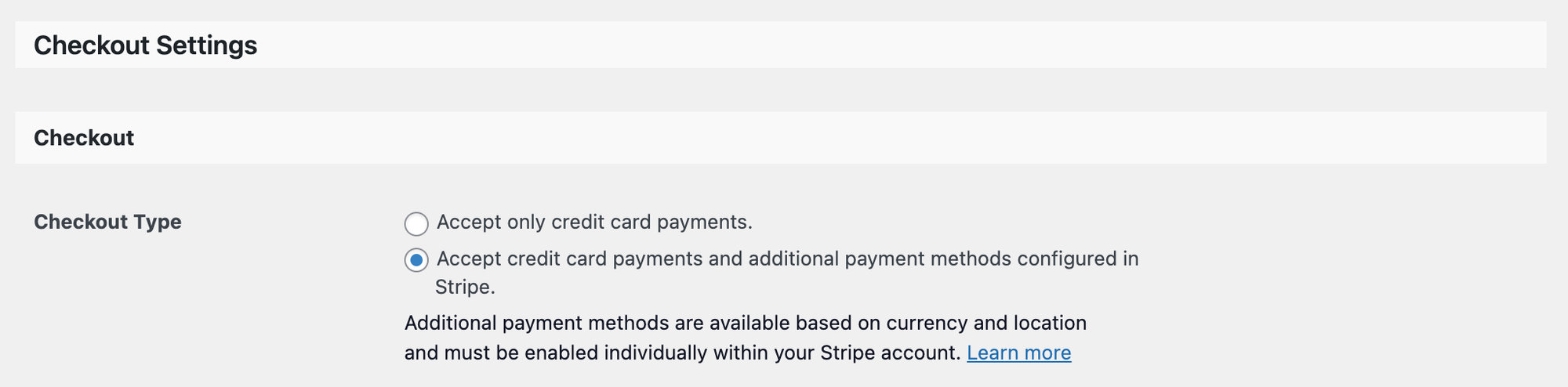
Confirm Apple Pay is enabled under Tickets > Settings > Payment > Stripe > Wallet Payments

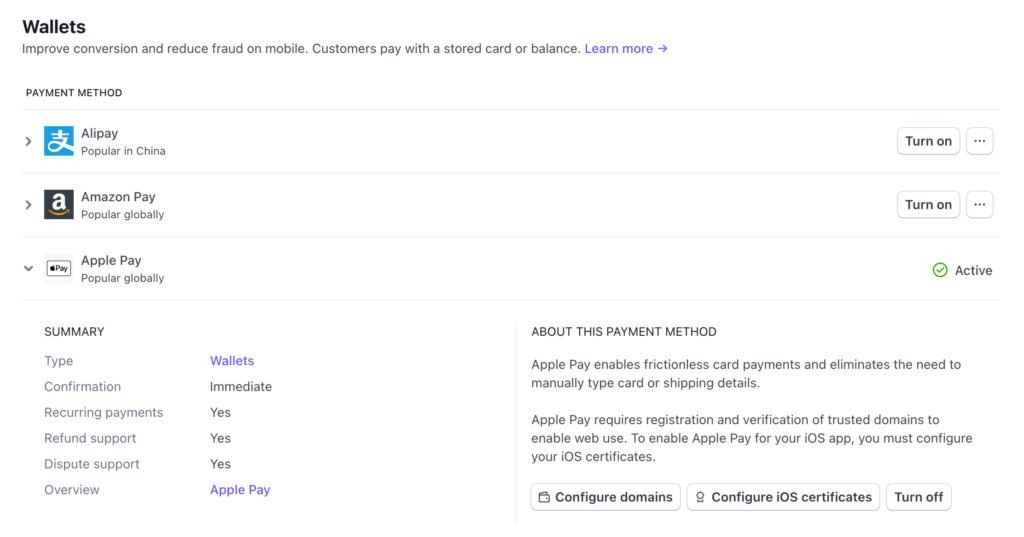
Stripe Wallets
Confirm Apple Pay is Active in Stripe under Payment methods.
Domain Validation
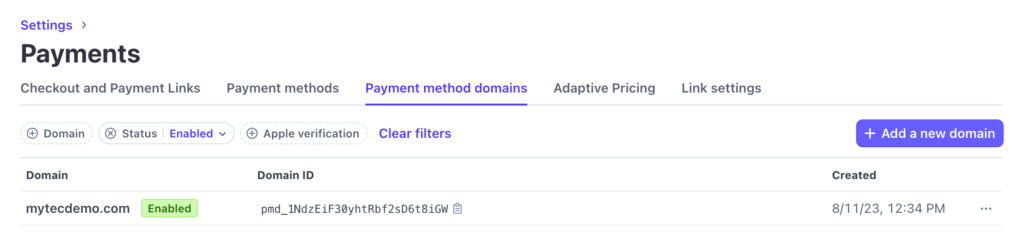
Confirm your Domain is validated in Stripe under Payment method domains.
If your domain is not listed, click + Add a new domain and proceed through the steps.
Once you added your domain, confirm the .well-known URL is accessible at DOMAIN.COM/.well-known/apple-developer-merchantid-domain-association
Caching Exclusion
Exclude the Checkout page selected under Tickets > Settings > Payments from any caching plugins or server-side caching.
Those are the most common issues faced between Apple Pay and Stripe while using Tickets Commerce as a payment method.
It’s important to remember that Stripe will determine whether to show Apple Pay based on the requirements in their Apple Pay documentation, but if you’re still facing issues, please reach out to our Support team.