
Tickets Commerce is the lightweight eCommerce solution that comes as part of the Event Tickets plugin. This solution is simpler in features and functionality compared to WooCommerce. You may run into limitations after using Tickets Commerce for a little while and decide to make the move to WooCommerce. In this article, we’ll show you how to easily switch from Tickets Commerce to WooCommerce with the Event Tickets and Event Tickets Plus plugins.
To use WooCommerce for tickets, you must have both the Event Tickets and Event Tickets Plus plugins installed and activated.
Tickets are specific to the eCommerce provider they were created for. Once a particular eCommerce solution is deactivated, any associated tickets will no longer be available. However, note that any existing attendees for those tickets will still show on the event’s attendees page.
Note: When making the switch to WooCommerce, you will have to manually re-create tickets that were created while you were still using Tickets Commerce.
Switching the ticket provider
Any given event can only use one eCommerce provider at a time. You can set this independently for each event.
You can find the Sell tickets using option in the “gear icon” settings of the tickets form when using the Classic Editor, and will show in the editor sidebar when the tickets block is selected when using the Block Editor.

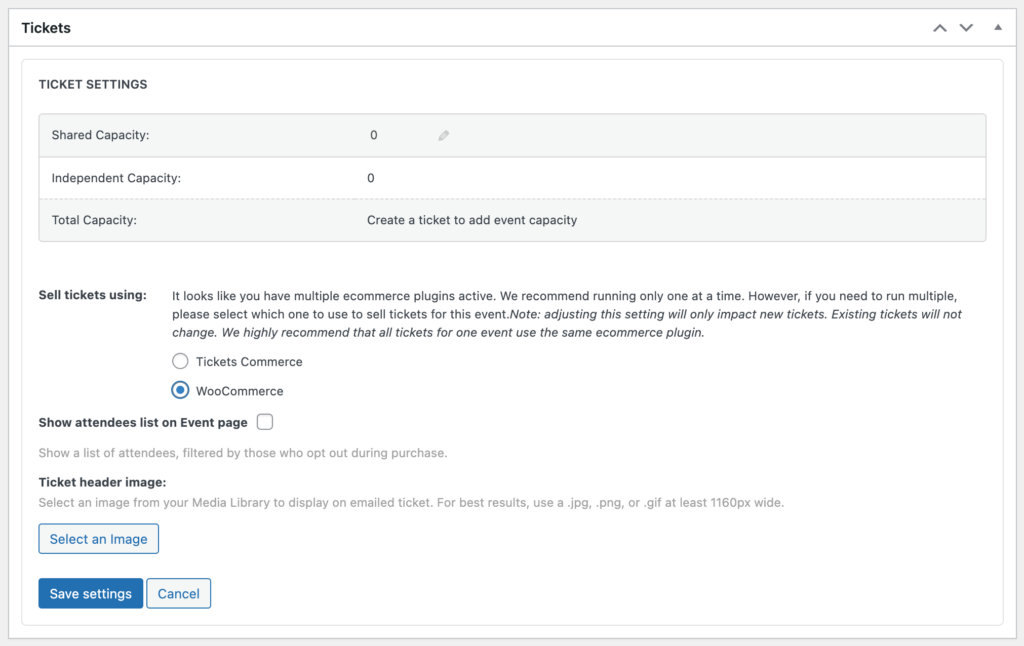
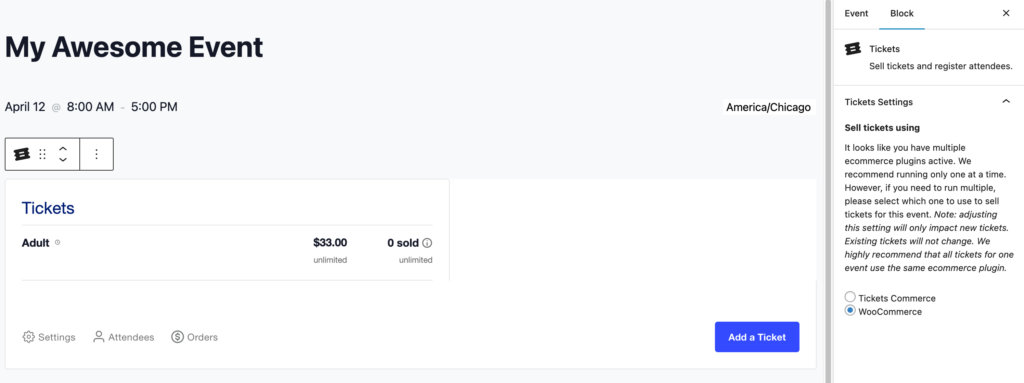
Depending on your situation when switching between Tickets Commerce and WooCommerce, you will take one of two approaches.
Events already using Tickets Commerce
If you have ongoing events with tickets that were created with Tickets Commerce but want to start using WooCommerce for new events and tickets, you can leave Tickets Commerce enabled until those events have finished ticket sales.
Once all of the Tickets Commerce events are finished, you can disable Tickets Commerce under Tickets > Settings > Payments, and any new tickets will automatically be created as WooCommerce tickets.
You can also move the attendees from the original ticket to a new one if desired. See our Moving Tickets article for these steps.
New events
If you’re using Tickets Commerce and WooCommerce, make sure the Sell tickets using option is set to “WooCommerce” before creating new tickets on new events.
If you do not have any current tickets for sale with Tickets Commerce, you can simply enable WooCommerce and disable Tickets Commerce under Tickets > Settings > Payments, and any new tickets will automatically use WooCommerce.