
Solid Performance is a powerful WordPress plugin designed to optimize site speed and overall performance. It provides tools to cache pages, minify CSS and JavaScript, and compress images, resulting in faster load times and a smoother user experience. Ideal for both developers and site owners, Solid Performance ensures your website runs efficiently, improving SEO rankings and user satisfaction.
In this article, we’ll show you how to use Solid Performance with The Events Calendar to give your site and your events the best performance possible.
What you need
Basic Performance Settings
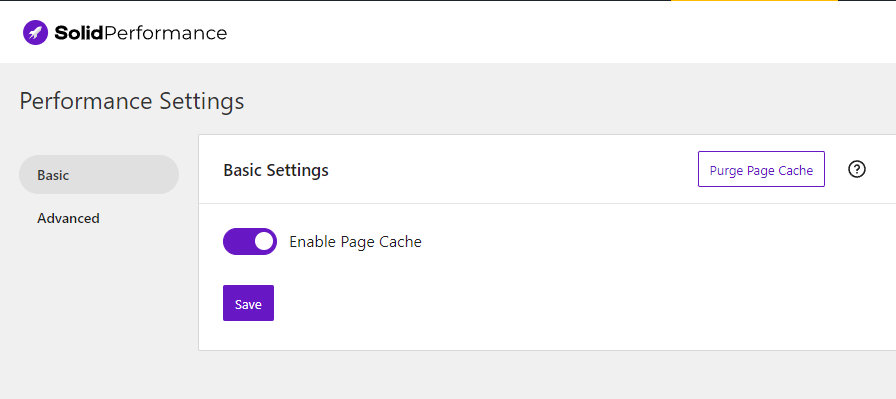
Head over to Settings → Solid Performance to view settings. There are two key options available: Enable/Disable Page Cache and Purge Page Cache. By default, Enable Page Cache is turned on, and it’s recommended to keep it enabled for optimal performance.
Advanced Performance Settings
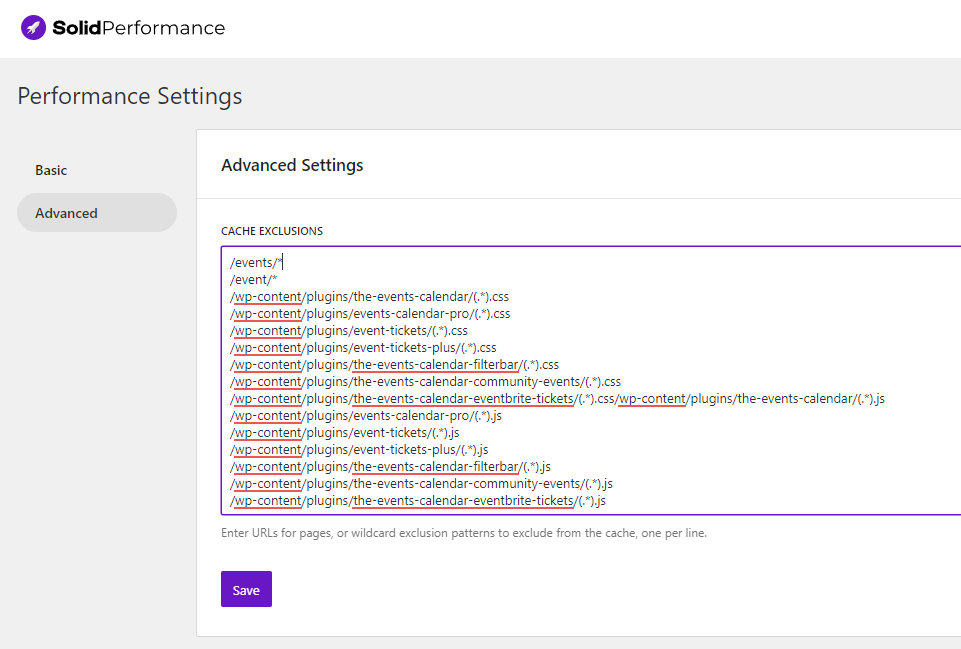
In this area, you can use the CACHE EXCLUSIONS to place your CSS and JS excludes from The Events Calendar plugins. You can also enter pages here to be excluded from being cached. For example, if you want to prevent caching on all single event pages, enter /event/*. You can also enter /events to exclude the event listings page.
Plugin Folders
Here is a list of the asset folders of each of our plugins that should be ignored.
| Plugin Name | Assets Folder |
|---|---|
| The Events Calendar | /wp-content/plugins/the-events-calendar/(.*).css/wp-content/plugins/the-events-calendar/(.*).js |
| Events Calendar Pro | /wp-content/plugins/events-calendar-pro/(.*).css/wp-content/plugins/events-calendar-pro/(.*).js |
| Events Tickets | /wp-content/plugins/event-tickets/(.*).css/wp-content/plugins/event-tickets/(.*).js |
| Events Tickets Plus | /wp-content/plugins/event-tickets-plus/(.*).css/wp-content/plugins/event-tickets-plus/(.*).js |
| Filter Bar | /wp-content/plugins/the-events-calendar-filterbar/(.*).css/wp-content/plugins/the-events-calendar-filterbar/(.*).js |
| Community Events | /wp-content/plugins/the-events-calendar-community-events/(.*).css/wp-content/plugins/the-events-calendar-community-events/(.*).js |
| Eventbrite Tickets | /wp-content/plugins/the-events-calendar-eventbrite-tickets/(.*).css/wp-content/plugins/the-events-calendar-eventbrite-tickets/(.*).js |
To copy-paste
You can use the below to copy-paste all CSS and JavaScript asset resources easily.
/wp-content/plugins/the-events-calendar/(.*).css
/wp-content/plugins/events-calendar-pro/(.*).css
/wp-content/plugins/event-tickets/(.*).css
/wp-content/plugins/event-tickets-plus/(.*).css
/wp-content/plugins/the-events-calendar-filterbar/(.*).css
/wp-content/plugins/the-events-calendar-community-events/(.*).css
/wp-content/plugins/the-events-calendar-eventbrite-tickets/(.*).css/wp-content/plugins/the-events-calendar/(.*).js
/wp-content/plugins/events-calendar-pro/(.*).js
/wp-content/plugins/event-tickets/(.*).js
/wp-content/plugins/event-tickets-plus/(.*).js
/wp-content/plugins/the-events-calendar-filterbar/(.*).js
/wp-content/plugins/the-events-calendar-community-events/(.*).js
/wp-content/plugins/the-events-calendar-eventbrite-tickets/(.*).js