
What happens when the ET+ App is unable to recognize the REST API?
In the vast majority of cases, this is due to shared hosting environmental limitations and/or server settings. The likely cause of the error at this point would be that the host is not exposing the ticket check-in endpoint on their WP install properly.
The failure is when the response from the server is not JSON.
One user noted a fix was due to the following:
“It was resolved by increasing SUHOSIN settings on the account on the server.”
Users can contact their hosting provider, informing them of the issue they are running into.
💡 Note: This is not a bug or breakage in the performance of the ET+ QR Code App.
We are currently working on building a debug option to check the server response. We’ll also be adjusting the error messaging within the App and within Event > Settings. The release date is TBD.
Server-Side Caching Blocking API Requests
Some hosting environments use aggressive server-side caching, which can interfere with the WordPress REST API. When this happens, the API calls required for check-ins may be blocked or return unexpected responses.
How to Fix It: Exclude the WP API and Event Endpoints from Caching
To ensure the ET+ check-in system works correctly, you need to exclude the following endpoints from caching:
/wp-json/
/wp-json/tribe/(.*)
Steps to Implement this Fix:
- Check Your Caching Plugin or Server Settings
- If you’re using a caching plugin like WP Rocket, W3 Total Cache, or WP Super Cache, look for an option to exclude specific URLs.
- Also applicable with server-side caching or setting, like WP Engine, LiteSpeed, SiteGround.
- Add
/wp-json/and/wp-json/tribe/(.*)to the exclusion list.
- Contact Your Hosting Provider
- If you’re unsure whether server-side caching is affecting the API, ask your hosting provider to whitelist the
wp-jsonendpoints from caching.
- If you’re unsure whether server-side caching is affecting the API, ask your hosting provider to whitelist the
Once caching is excluded for these endpoints, the ET+ App should be able to process check-ins properly.
Offline Check-in Troubleshooting
If you can’t use offline check-in at all, check these requirements:
- You must have both The Events Calendar and Event Tickets Plus installed
- Offline check-in only works for sites using The Events Calendar alongside Event Tickets (ET) and Event Tickets Plus (ET+)
- If you only have Event Tickets and Event Tickets Plus without The Events Calendar, offline functionality will not be available
“Attendee Not Found” Errors While Offline
This typically happens when:
- The ticket was purchased after your last sync with the server
- The attendee data wasn’t included in your offline sync
- Solution: Connect to the internet and let the app sync, then try the check-in again
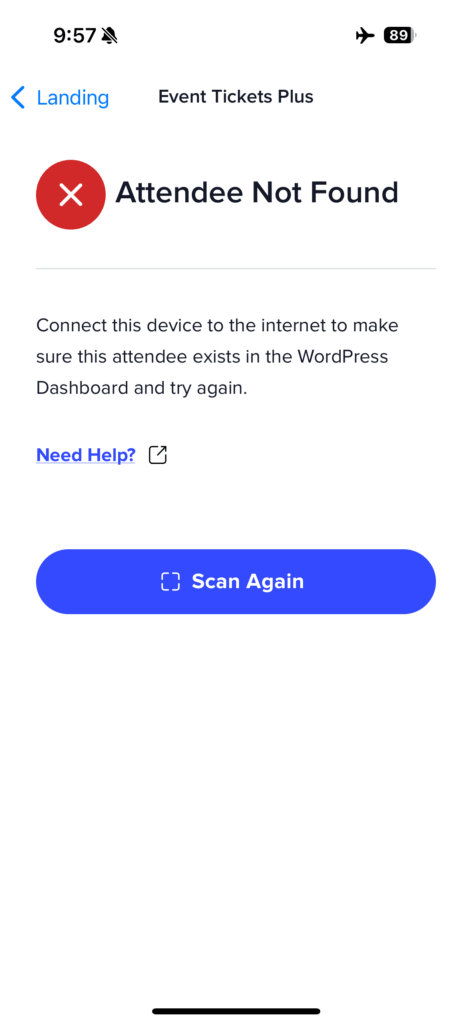
App Won’t Sync When Back Online
- If the app shows sync errors when you reconnect to the internet:
- Close and reopen the app to trigger a fresh sync attempt
- Check your internet connection strength
- If the error persists, try switching between WiFi and cellular data
- Contact support if sync failures continue after trying these steps
Intermittent Connection Issues
- If you’re in an area with weak or spotty internet service:
- Recommended solution: Turn on airplane mode and work entirely offline
- This prevents failed API requests that can cause check-in errors
- Remember to sync when you return to a stable internet connection
💡Tip: Before heading to a location with poor internet connectivity, always open the app while connected to ensure your latest event and attendee data are synced to your device.
Other common reasons check-in might not work as expected
- One of the steps was missed during the setup related to the app.
- The person or persons who are scanning QR codes at your events must be logged into your WordPress site with sufficient permissions to check-in users.
- The WooCommerce order status for a ticket purchase was not set to “Complete”
- If you are working offline, ensure that you have synced your events and attendees while connected to the internet before going offline. Only tickets included in your last sync will be available for offline check-in.
See also: Using QR codes with Event Tickets Plus