
This article provides simple, one-line code snippets that you can add to your website to instantly tweak how Event Tickets and The Events Calendar behave or appear. These are perfect for quickly adding to your child theme’s functions.php file or using with a Code Snippets plugin.
All examples below are taken from our Developer Docs, which contain a full list of available functions, hooks, classes, and methods you can use to tailor your setup further.
💡Important Notice: Always remember to test any changes on a staging site first, if possible, before applying them to your live website!
Display Ticket Sale Start Time
By default, Event Tickets does not show the ticket sale start time if tickets aren’t yet available. This tweak ensures that this crucial information is always visible to visitors.
What it does: Allows inclusion of ticket start sale time in unavailability message
add_filter( 'tribe_tickets_unvailable_message_time', '__return_true' );
Result:
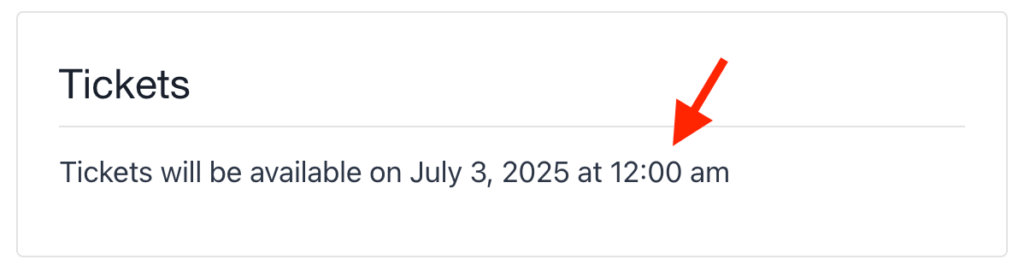
Ref: tribe_tickets_unvailable_message_time
Change the “Orders” Page Title in the Admin Dashboard
This filter gives you control over the title displayed for the Event Tickets “Orders” page within your WordPress admin dashboard.
What it does: Customizes the page title in the admin backend.
add_filter( 'tribe_tickets_admin_order_page_page_title', function( $title ) {
    return __( 'Event Registrations Overview', 'your-text-domain' );
});
Result:
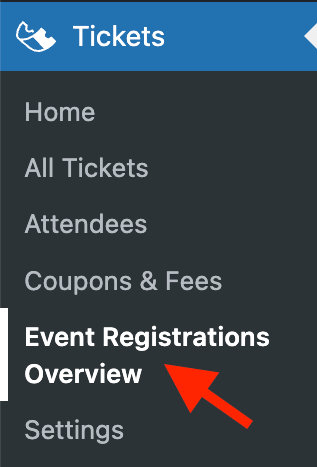
Ref: tribe_tickets_admin_order_page_page_title
Customize the “Today” Button Label
The “Today” button on calendar views lets users jump to the current date. You can rename it to something more personalized.
What it does: Changes the label on the calendar’s “Today” button.
add_filter( 'tec_events_today_button_label', function( $label ) {
    return __( 'Current Day', 'your-text-domain' );
});
Result:
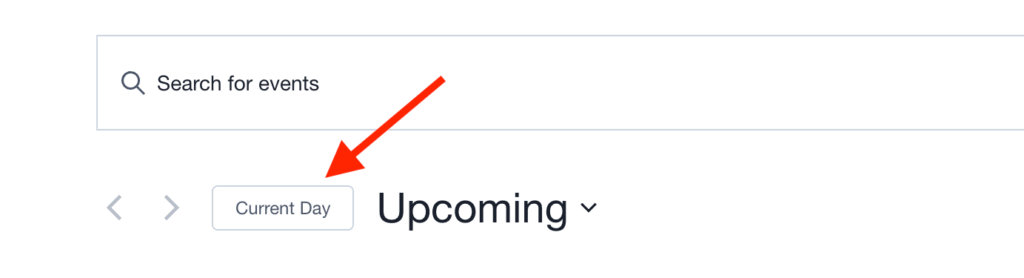
Ref: tec_events_today_button_label
Customize the “Postponed” event status label
Use this tweak to rename the default “Postponed” status label shown on events.
What it does: Replaces the “Postponed” label with a custom label of your choice.
add_filter( 'tec_event_status_postponed_label', function() { return 'Rescheduled'; } );
Result:
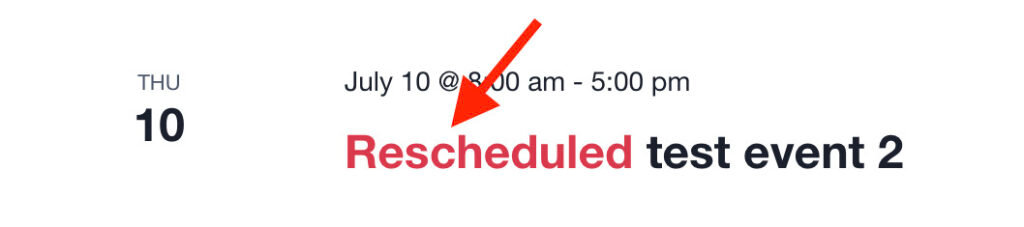
Ref: tec_event_status_postponed_label
Add a Custom Message to Google Calendar Descriptions
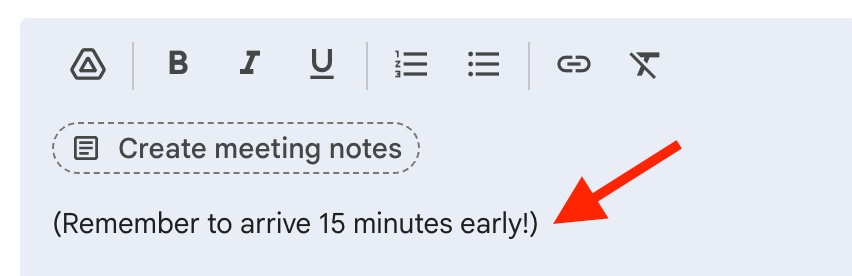
When users add your event to Google Calendar, this tweak appends a custom note to the calendar description.
What it does: Appends custom text to the Google Calendar event details.
add_filter( 'tec_views_v2_single_event_gcal_link_parameters', function( $params ) {
    $params['details'] .= "(Remember to arrive 15 minutes early!)";
    return $params;
} );
Result:
Ref: tec_views_v2_single_event_gcal_link_parameters
How to Use These Snippets:
Add the snippets to your site using either of these methods:
- Theme Method: Paste the code at the end of your child theme’s
functions.phpfile.
- Plugin Method: Use a plugin like Code Snippets to add and manage your custom code.
You can read more about best practices for implementing snippets here.