
An absolutely necessary part of getting your Promoter account running smoothly is the domain verification process on your Mail Delivery Settings page. Verifying your domain will help your emails reach your subscribers’ inboxes and not their spam folders.
The link to your Mail Delivery Settings page can be found by clicking on the profile icon at the top right of the Promoter page and selecting “Mail Delivery Settings”.
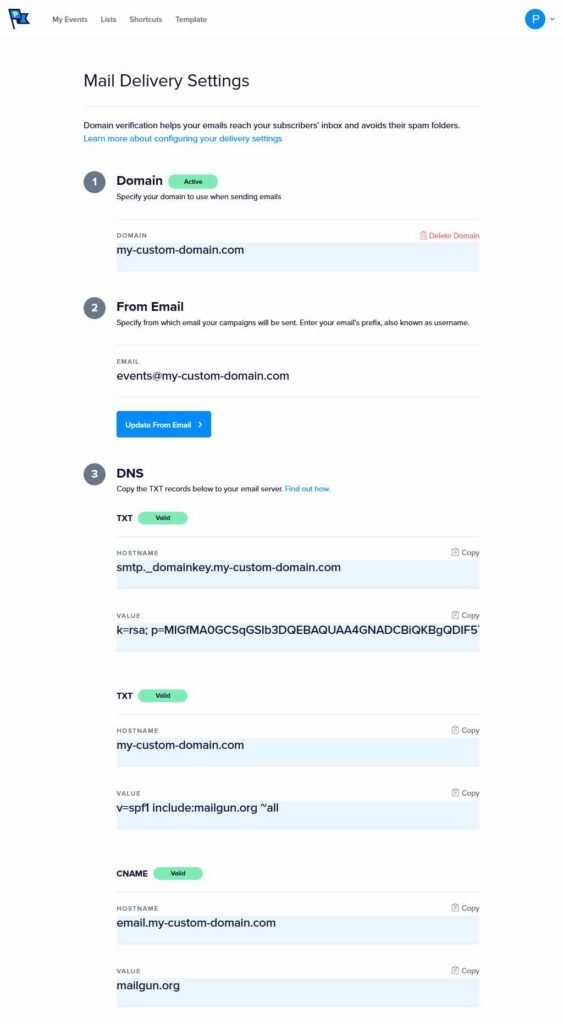
Here’s what the Promoter Mail Delivery Settings page looks like when the verification process is complete:
Verifying your Domain
The following three steps are needed to verify your domain: Adding your domain, entering your “from” email, and creating some new DNS records where your domain is hosted.
If your domain is already hosted somewhere, you’ll need to log in to your provider to change DNS records.
Step 1: Add your domain
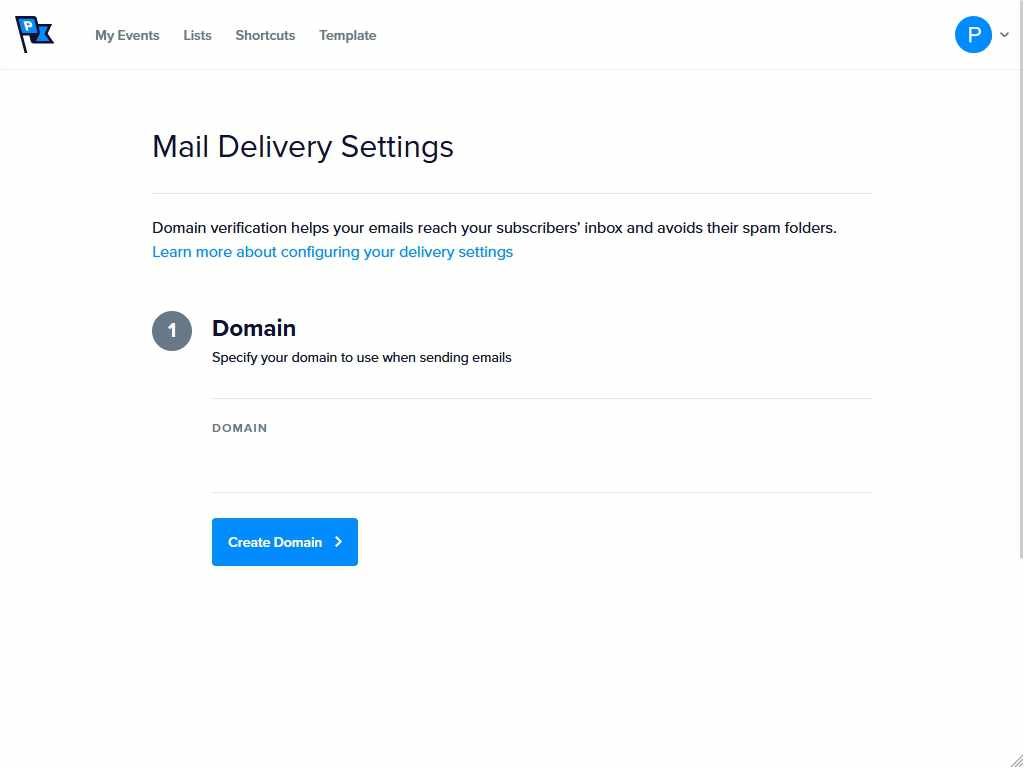
Initially, the Mail Delivery Settings page will look like this:
Now, enter your domain name in the “Domain” field and click Create Domain:
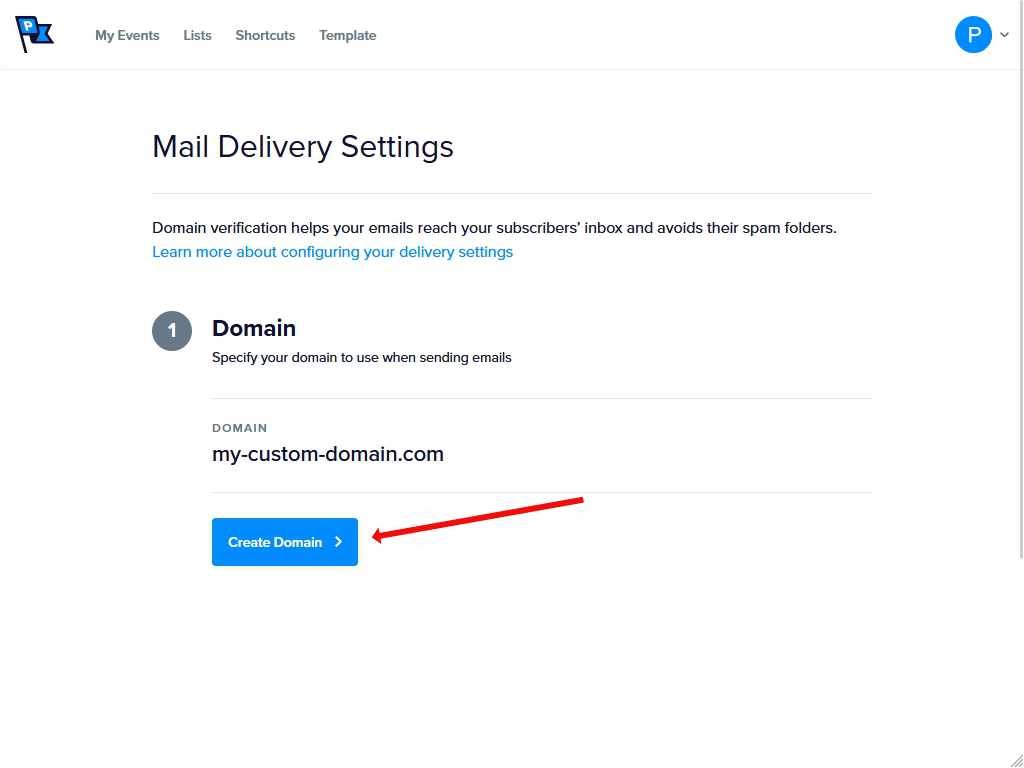
After you click Create Domain, the page should show Steps 2 and 3 below Step 1. All the fields will now be filled in for you. The fields under Step 3 will need to be copied to create new DNS records with your host.
Step 2: Add your “from” email to the settings
In the From Email field under Step 2, enter the email address from which you will be sending Promoter emails.
Step 3: Add the TXT records to the DNS records
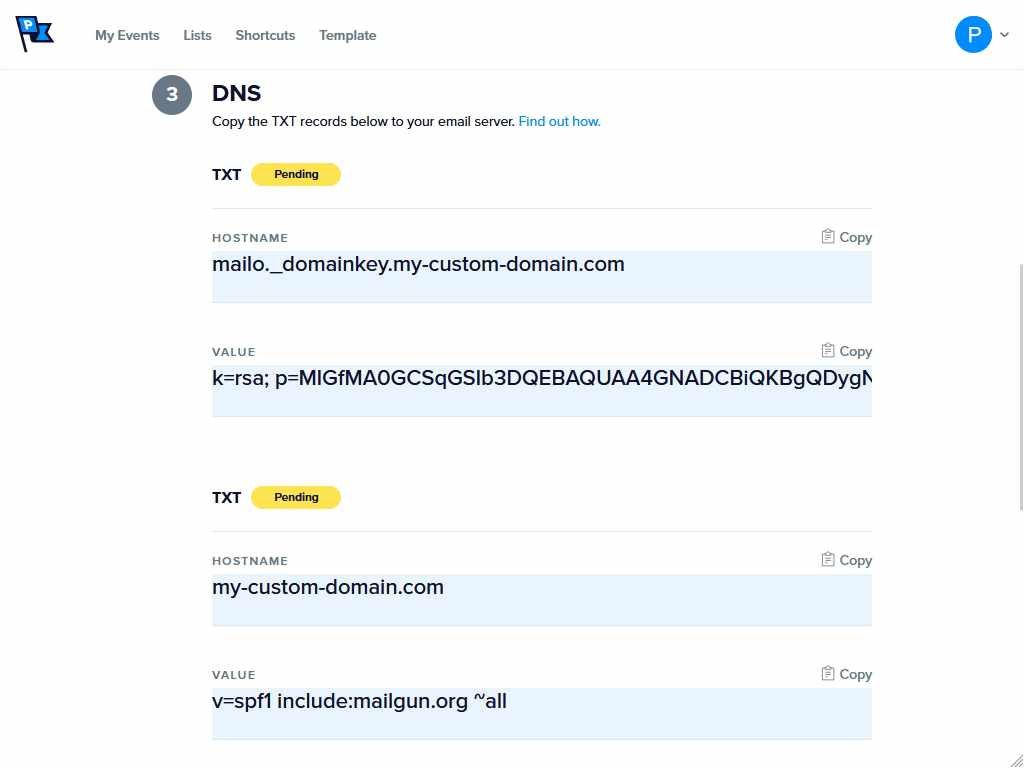
For the final step, you will need to create two TXT records in your domain’s DNS records. The “hostname” and “value” for each record are located in the fields in Step 3. You will need to copy those and paste them into the new DNS records you will be creating.
Here is what the unverified TXT pairs will look like:
A few minutes after you’ve added all the necessary records to your DNS, you can click the “Verify DNS” button to begin the domain verification process on Promoter. Please note that you may have to click the verify button several times while your changes propagate from your DNS, as the time it takes for your DNS records to propagate throughout the internet will depend on your DNS provider. Once the domain verification process is complete, the “Verify DNS” button will be removed from the page, and your domain will show as “Active” on the Mail Delivery Settings page.
Hosts have different processes for adding a TXT or CNAME record to the DNS. Here are some guides to adding TXT records from a few hosts as examples:
Once your domain is verified, your Promoter account will be updated with the latest bulk email protocols of the largest email providers. If you run into any issues adding a TXT or CNAME record in your DNS settings with your host, contact support so that we can help you get everything connected.
The Challenge: Existing SPF or CNAME Records
Sometimes, you might encounter a situation where your existing domain already has SPF or CNAME records that conflict with what the Promoter requires. Unlike some services that allow for flexible modifications to existing DNS settings, Promoter cannot alter or override existing CNAME records for its operations. This limitation necessitates a workaround to ensure smooth integration.
Step-by-Step Solution for Existing SPF/CNAME Records
If you’re facing this challenge, here’s a straightforward approach to resolve it:
1. Set Up a Subdomain
To work around the conflict, you’ll need to create a new subdomain specifically for Promoter.
For instance, if your primary domain is example.com, you would create a subdomain such as promoter.example.com. This subdomain will be used exclusively for Promoter’s configuration.
2. Update Mail Delivery Settings
Once you’ve established the subdomain, you’ll need to update your Promoter configuration to use this new subdomain.
This involves removing the existing domain configuration from Promoter and reinitiating the setup process with the newly created subdomain.
The Challenge: TXT and CNAME records are still showing as “Pending” in Promoter.
DNS propagation typically takes 24-48 hours, though in certain cases, it may take up to 72 hours to fully propagate across all servers worldwide. Delays can occur due to network issues, caching by ISPs, or other technical factors.
If you’ve already reached out to your DNS provider and are still unable to verify the TXT and CNAME records, here are additional steps you can take to troubleshoot:
- Check for Accuracy: Ensure that the values for the TXT and CNAME records match exactly with those provided. Even minor issues, such as extra spaces, typos, or incorrect entries, can lead to verification failures.
- Confirm with DNS Provider: Contact your DNS provider to ensure that the records have been added correctly and are actively propagating. They can also help verify if there are any issues with their configuration.
- Online DNS Lookup Tools: Use tools like MXToolbox or WhatsMyDNS to check if the TXT and CNAME records are visible across global servers. This can help identify whether the issue is with propagation or incorrect entries.