Automatic Webhook Creation for Stripe
Starting with Event Tickets version 5.11.0, when you connect Stripe via Tickets Commerce, Event Tickets will now automatically create and configure the required webhook in your Stripe account. There’s no need to manually create a webhook or select Stripe events — we handle it for you.
This removes a key setup step and helps avoid common errors that can interrupt payments or cause issues during checkout.
💡 Note: Webhooks are only created automatically when using Stripe in live mode. If you’re using test mode, you’ll need to set up webhooks manually.
When Does It Happen?
The webhook is created or updated automatically:
- When Stripe is connected using Tickets Commerce or you click the button to set them up automatically.

- When the Event Tickets plugin is activated, if Stripe is already connected
The webhook will be disabled automatically:
- When you disconnect Stripe
- When the plugin is deactivated, if the webhook is known to be managed by the plugin
We also ensure:
- No duplicate webhooks are created by the plugin
- Existing manually-created webhooks are not affected
Why It Matters
With automatic webhook setup, you no longer need to log into Stripe to manually configure anything — it’s all taken care of when you connect your account through Tickets Commerce. That means:
- Faster setup with fewer steps
- No technical know-how required to complete your Stripe integration
- More reliable checkouts for your ticket buyers
- Less room for error — everything is configured correctly, right from the start
Manual Webhook Creation for Stripe
Webhooks are used by Stripe to communicate with your site. It provides information such as the status of the payment and is used to update the ticket orders based on certain events from Stripe’s side of things.
💡 Note: Webhooks might not validate and work on some staging site domains!
Setting up webhooks should be fairly simple. In the Stripe settings area, you’ll find a webhook endpoint URL ready for you to copy and paste into your Stripe dashboard:
- Head to Tickets > Settings > Payments > Stripe > Webhooks and copy the value of the “Webhooks URL” field.
- In your Stripe Dashboard go to Developers > Webhooks and click on “Add endpoint”.
- Paste the “Webhooks URL” value you’ve copied in step one in the “Endpoint URL” field. Add a description if you feel it’s necessary.
- Click the blue + Select Events button and select the following events (at minimum)
- account.updated
- charge.expired
- charge.failed
- charge.succeeded
- charge.refunded
- payment_intent.canceled
- payment_intent.created
- payment_intent.payment_failed
- payment_intent.processing
- payment_intent.requires_action
- payment_intent.succeeded
- Select Latest API version from the Version section, if shown, and then “Add endpoint”.
- From within your newly created Webhook endpoint page, copy the Webhook Signing secret (after clicking Reveal). Your Webhook Signing secret is prefixed with ‘whsec_’.
- Back in Tickets > Settings > Payments > Stripe > Webhooks paste the value from the previous step into the “Signing secret” field.
One important thing to have in mind is that the webhooks validation will not work while Tickets Commerce is in test mode. If you are experiencing issues setting up Stripe, we recommend switching to Pretty Permalinks, which you can find under WordPress Settings > Permalinks.
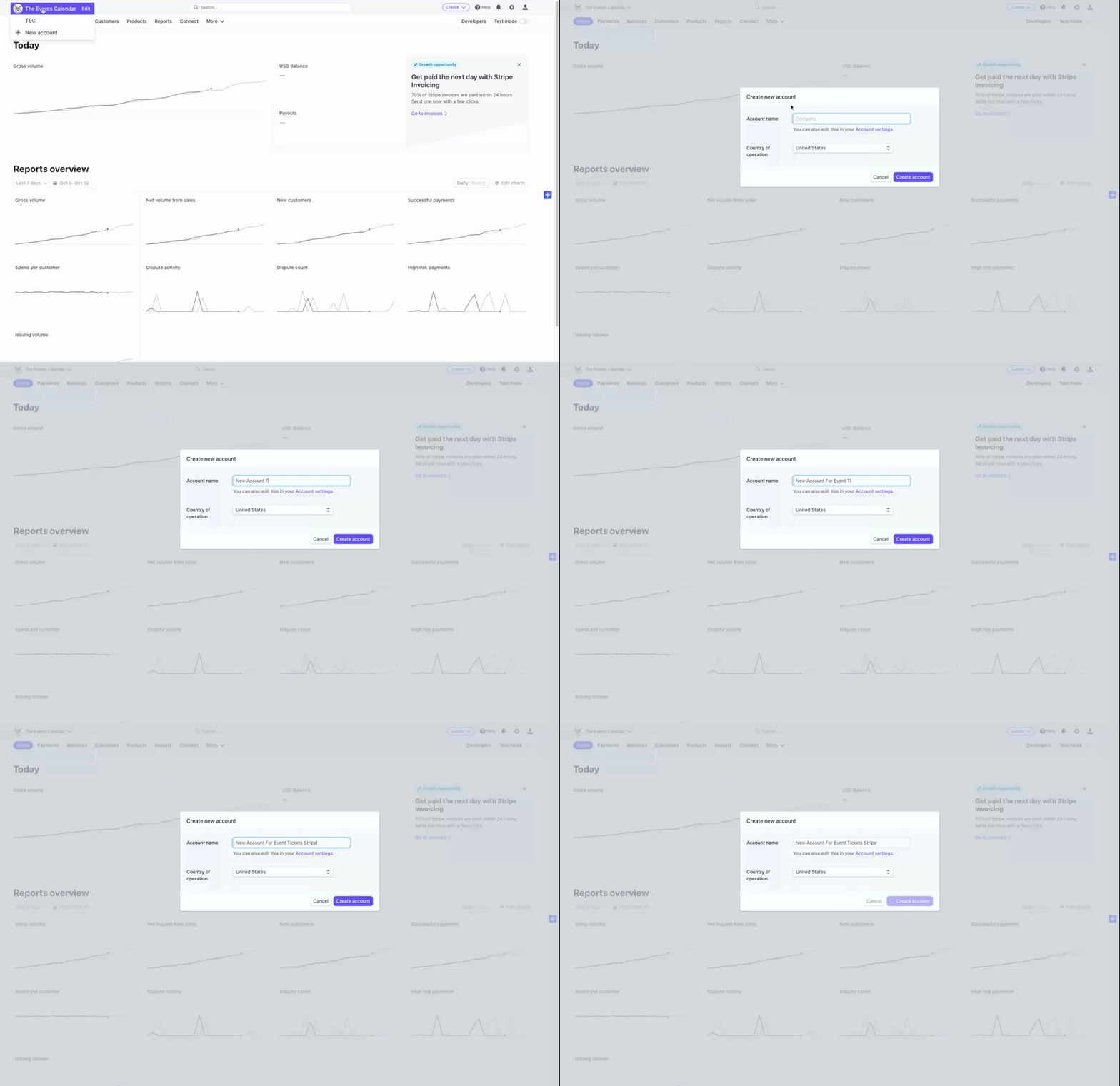
Note: Due to Stripe’s Single Platform Policy, you won’t be able to connect to multiple platforms using the same account at the same time. As a workaround, we recommend you create individual accounts under the same Stripe user login to connect to different platforms.