
Enhancing your WordPress event pages with custom ticket layouts can significantly improve user experience and boost ticket sales. By integrating Event Tickets Plus plugin with Elementor, you can design visually appealing and functional ticket sections without delving into code. This guide will walk you through the process of creating custom ticket layouts using Elementor.
Prerequisites
Before you begin, ensure you have the following plugins activated:
- The Events Calendar
- Event Tickets
- Event Tickets Plus
- Elementor or Elementor Pro
1. Create an Event and Add Tickets
- Navigate to your WordPress dashboard.
- Go to Events > Add New to create a new event.
- Fill in the event details such as title, description, date, and time.
- Scroll down to the Tickets section and click on + New Ticket.
- Enter ticket details like name, price, stock, and sale dates.
- Click Save Ticket to add it to your event.
Review Creating Tickets article for further information.
2. Enable Elementor for Events
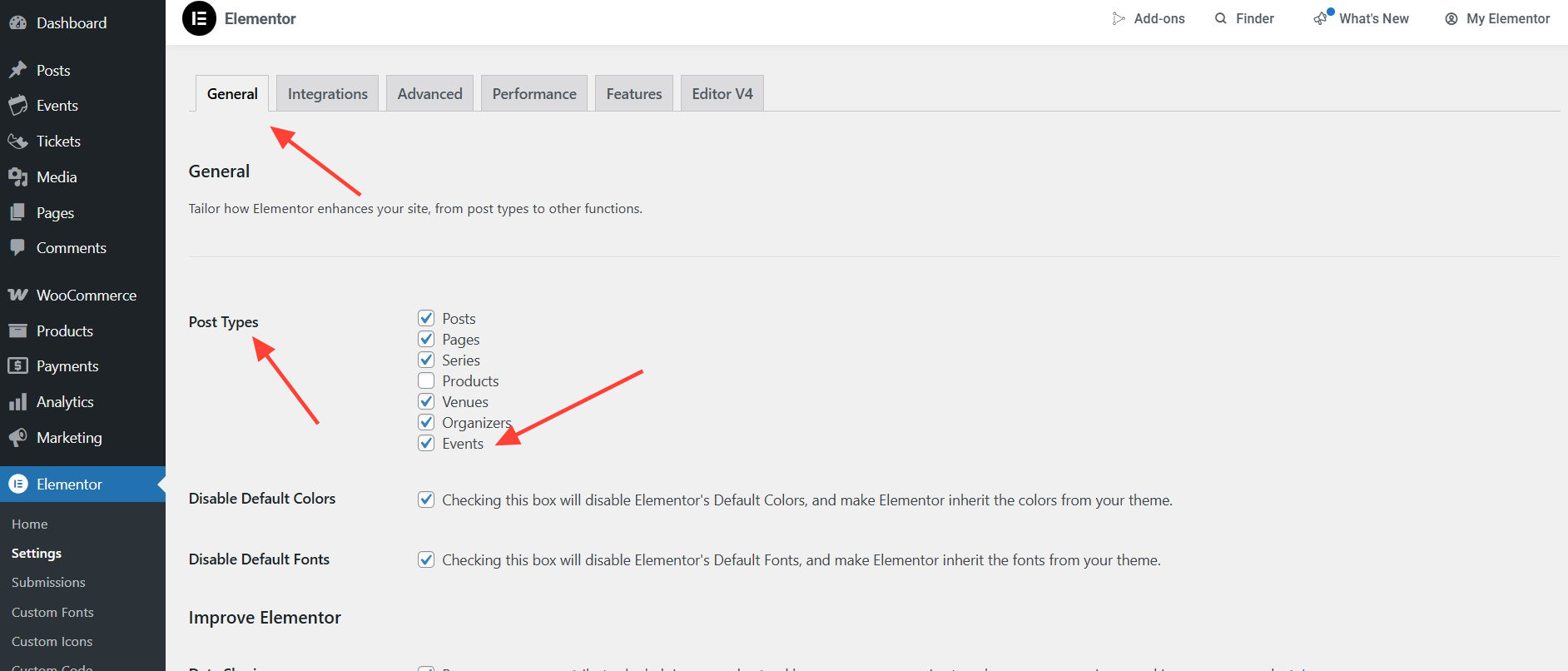
- Go to Elementor > Settings.
- Under the General tab, check the box for Events to enable Elementor editing for event post types.
- Click Save Changes.
3. Design the Event Page with Elementor
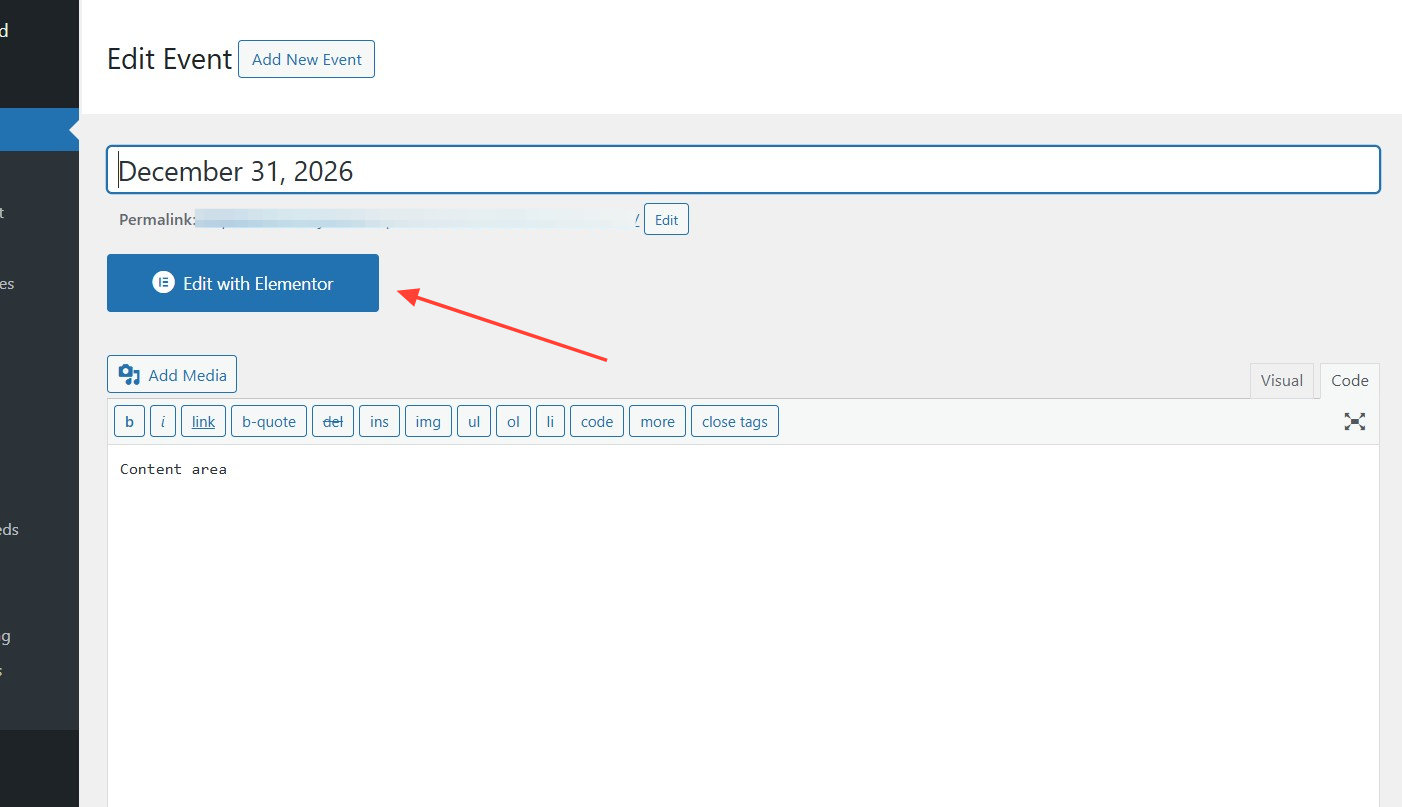
- Navigate to Events > All Events and select the event you created.
- Click on Edit with Elementor to open the Elementor editor.
- Use Elementor widgets to design your event page layout, including headings, images, and descriptions.
4. Add the Event Tickets Widget
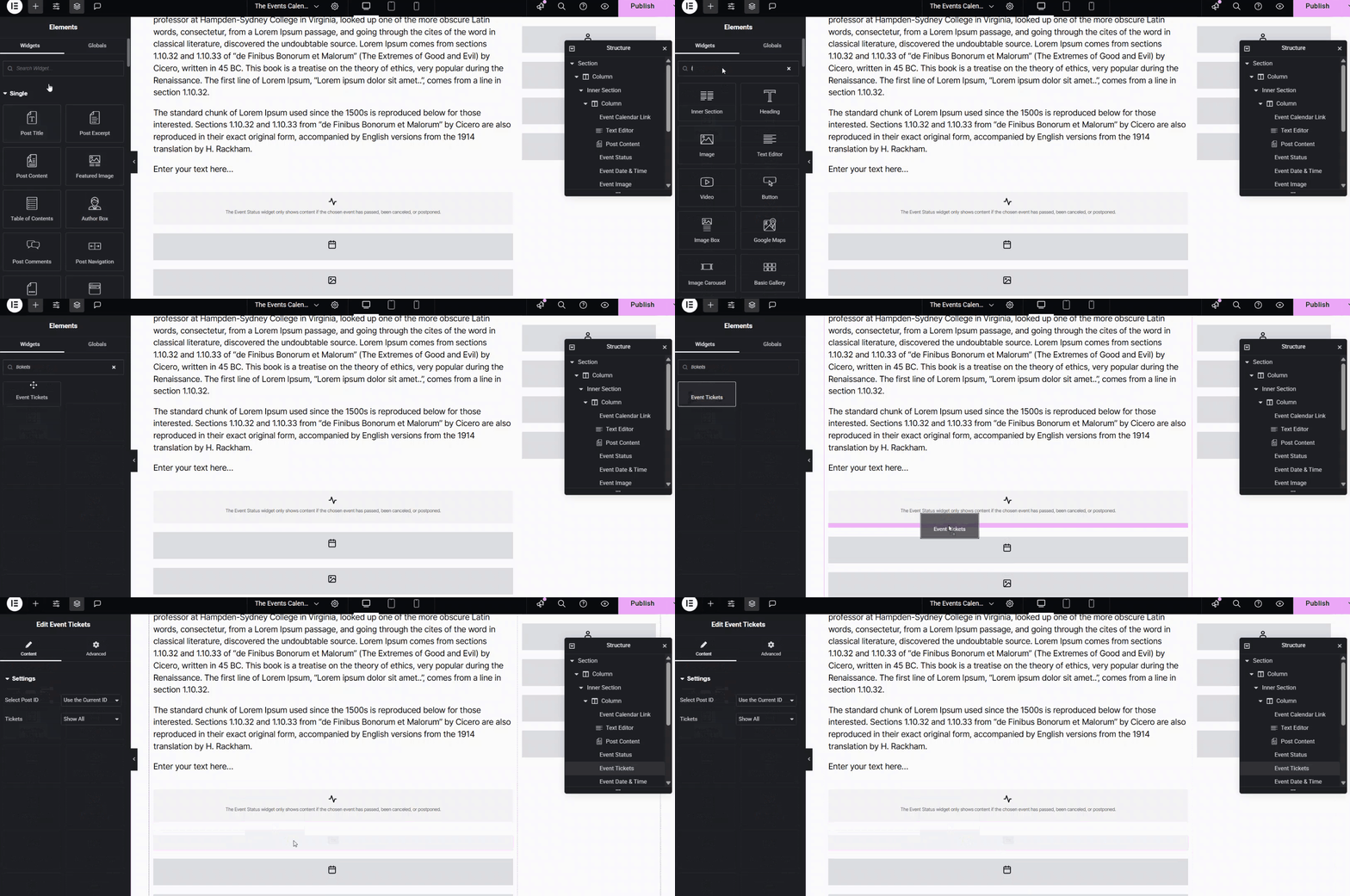
- In the Elementor editor, search for the Event Tickets widget in the sidebar.
- Drag and drop the widget into your desired section on the page.
- Configure the widget settings to display the ticket form appropriately.
5. Customize the Ticket Layout
- Use Elementor’s styling options to customize the appearance of the ticket section. Extend the customization by using custom CSS.
- Adjust typography, colors, spacing, and other design elements to match your site’s branding.
- Preview the changes to ensure the ticket layout is visually appealing and functional.
- Once satisfied with the design, click Publish to make the event page live with your custom ticket layout.