
Why Use Booking Fees?
When selling tickets to events, you may want to cover processing costs, venue fees, or other expenses without adjusting the base ticket price. The new Booking Fees feature in Event Tickets allows you to automatically apply percentage-based or flat-rate fees to ticket purchases. This feature provides flexibility in how fees are structured, ensuring you can recover costs while maintaining clear and transparent pricing for attendees.
👋 Note: This feature currently only works with Tickets Commerce.
How to Set Up Booking Fees
In your WordPress dashboard, go to Tickets > Coupons & Fees > Fees. Click on “Add New” to set up a custom fee.
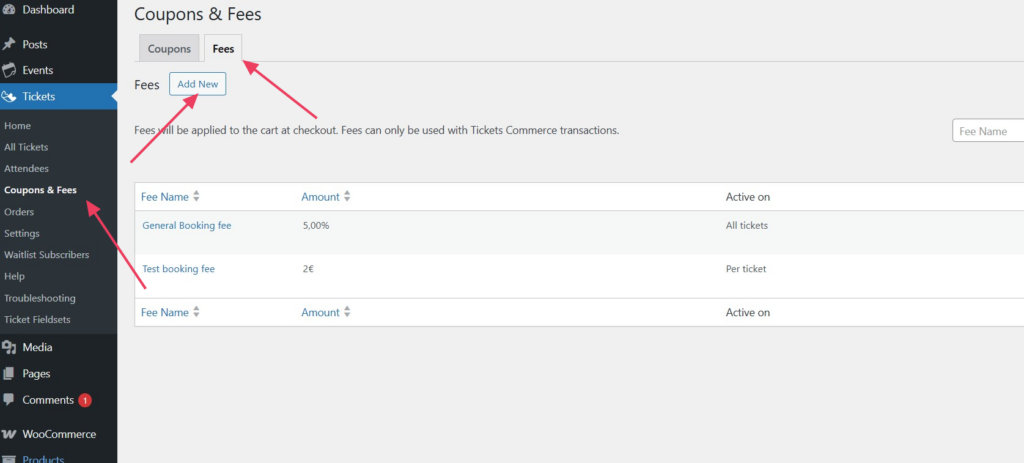
Once there, you will be met with the following screen:
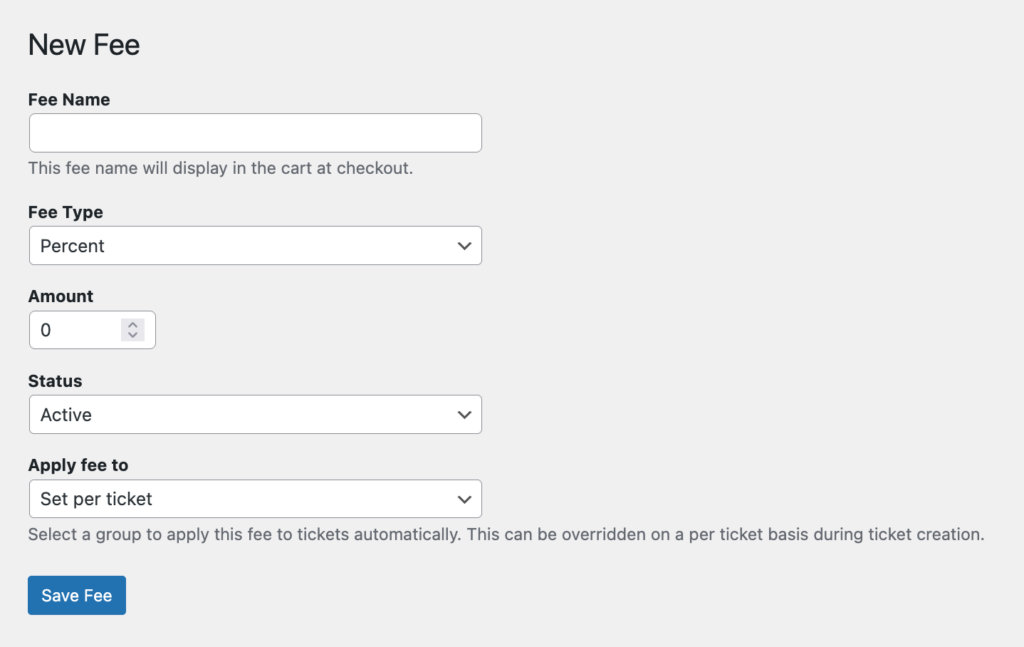
- Fee Name – this is the name of the fee that will appear when creating tickets, and to customers when they purchase a ticket.
- Fee Type – the type of fee.
- Percentage Fee – A percentage of the ticket price.
- Flat-Rate Fee – A fixed amount applied per ticket
- Amount – the fee value, either as a percentage of the ticket price or a fixed flat rate per ticket, depending on the selected fee type.
- Status – determines whether the fee is Active (can be applied to tickets), Inactive (saved but not applied), or Draft (not yet finalized and not applied to any tickets).
- Apply Fee To – determines whether the fee is automatically applied to all tickets or needs to be manually added to specific tickets.
How to Apply Booking Fees to Events and Tickets
The Booking Fees feature currently only works with Tickets Commerce, and does not yet support other ecommerce solutions like WooCommerce, so be sure to set up Tickets Commerce from Tickets > Settings > Payments in order to use it.
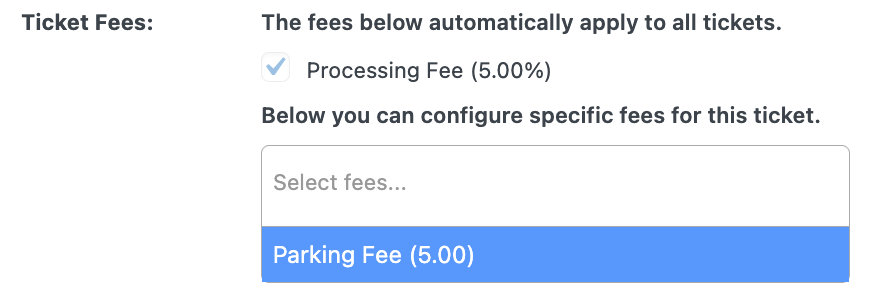
Once you’ve created fees, go to Events > Add New and create a new event. Then, when adding a ticket you will see the Ticket Fees section:
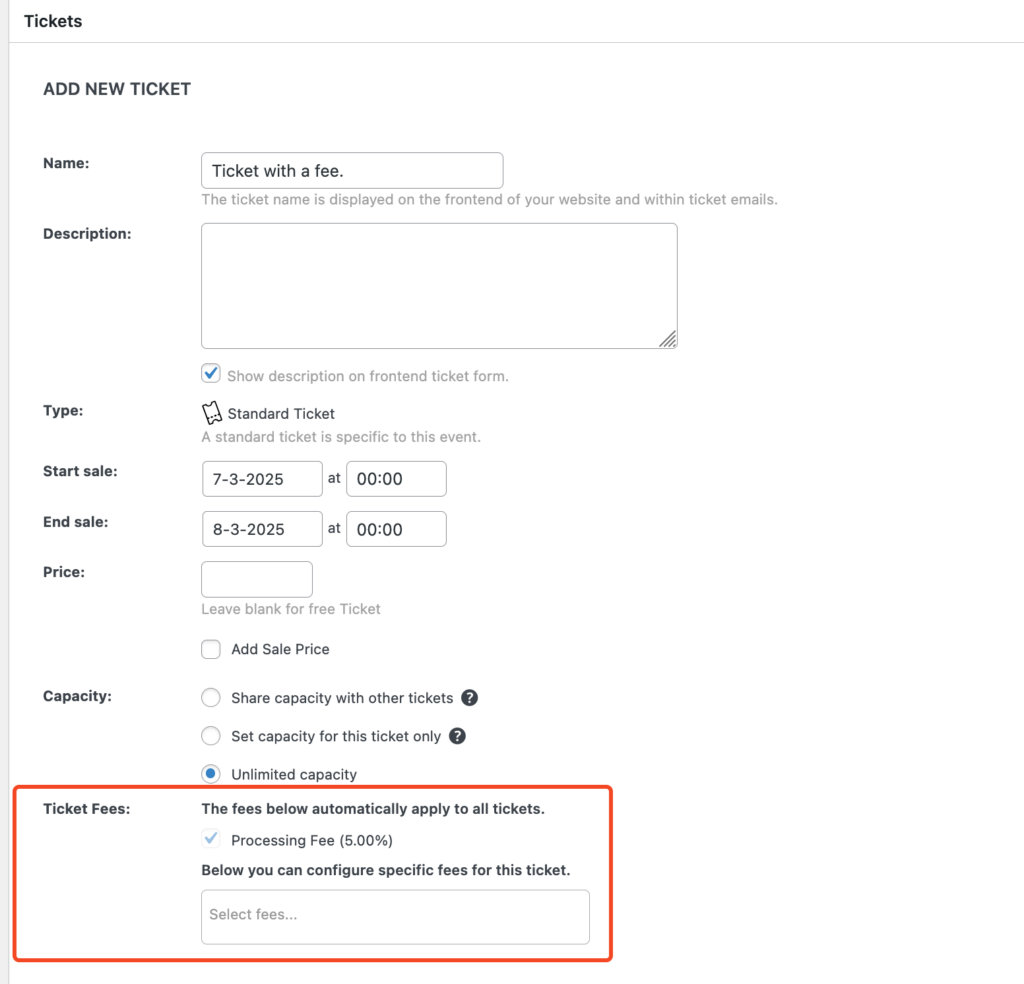
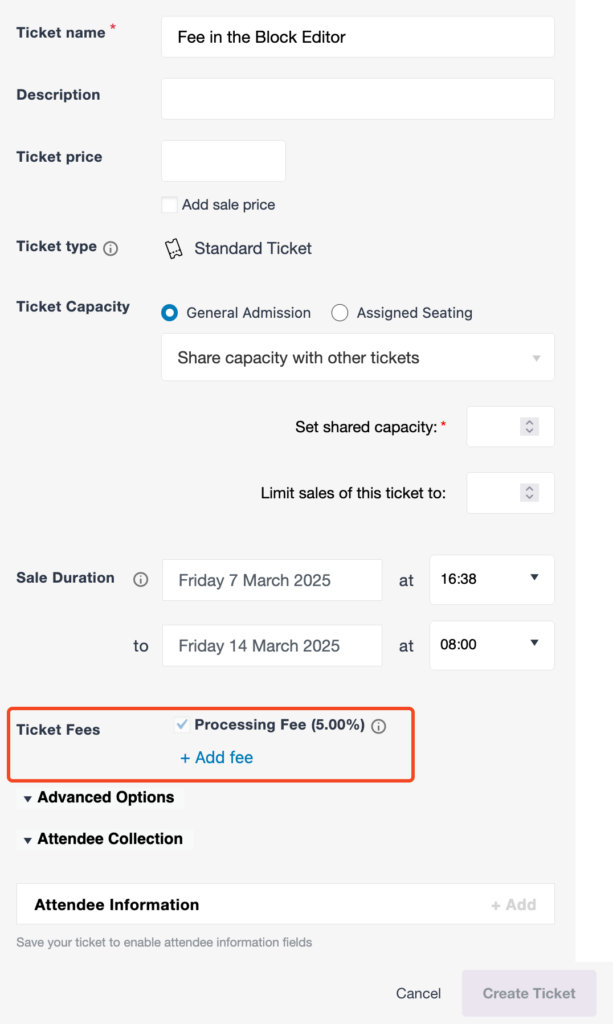
Here you can see the “Processing Fee” which is a fee added to “All Tickets“, so it is automatically added.
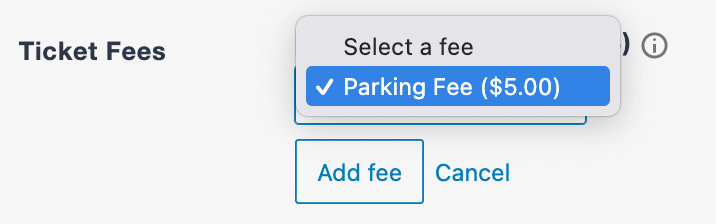
Additionally, you have an option to select fees that were configured to be set per ticket. Clicking on that option will bring up the available fees, as well as a search bar where you can search for a particular fee:
Purchasing a Ticket With a Fee
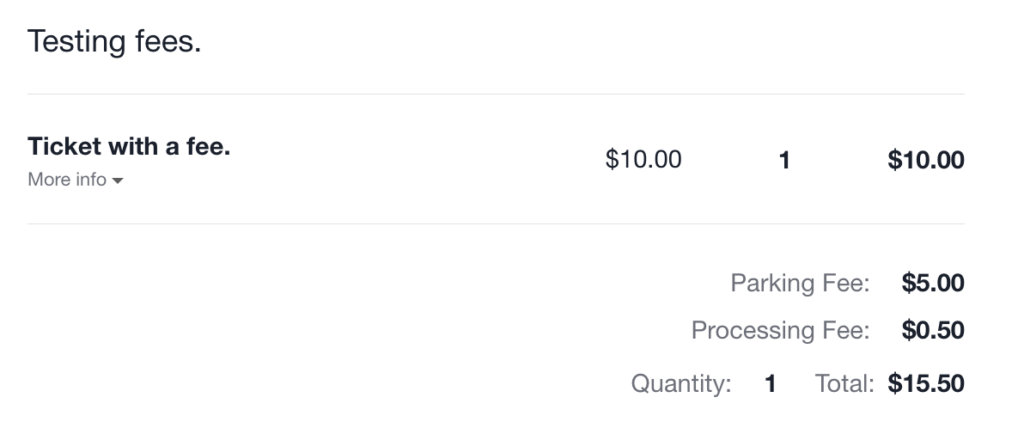
Once a ticket with a fee has been selected to be purchased, customers will get an itemized list of the fees during checkout:
If you should get stuck or need any further help, please don’t hesitate to post to our help desk and let us know.