
This article covers refunding or canceling orders that contain tickets. It’s important to process these changes carefully and know how your Event Tickets or Event Tickets Plus attendee lists and capacity counts will be affected.
Performing the Refund or Cancellation
Ticket orders can be refunded, but only by the e-commerce platform itself.
The first step here, then, is to refer to your e-commerce platform’s documentation for processing refunds and canceling orders. Here is a list of resources for the e-commerce platforms that Event Tickets Plus supports:
- How to Issue Refunds with Tickets Commerce: PayPal
- How to Issue Refunds with Tickets Commerce: Stripe
- WooCommerce: How to Refund
Capacity and Attendees After the Refund
Once an order has been refunded or canceled, you will need to make some decisions: first about the capacity for the event with which the tickets were associated, then about the attendee who originally purchased the refunded/ canceled ticket.
Attendee Considerations
When viewing the Manage Attendees page for any ticketed event, any refunded or canceled tickets will still be listed with all the rest. If you have marked a ticket order with a status such as Refunded or Cancelled, then the ticket will reflect this in the Order Status column on this page. These tickets can still be checked in manually by your personnel.
If you wish to remove a refunded or canceled ticket from your list of attendees and eliminate the possibility of the original buyer checking in with that ticket, navigate to the attendee list for the associated event. (You’ll find instructions for how to do so here on our Knowledgebase.) Click the checkbox next to the attendee or attendees that you wish to remove, select Delete from the Bulk Actions menu at the top (or bottom) of the list, and click Apply.
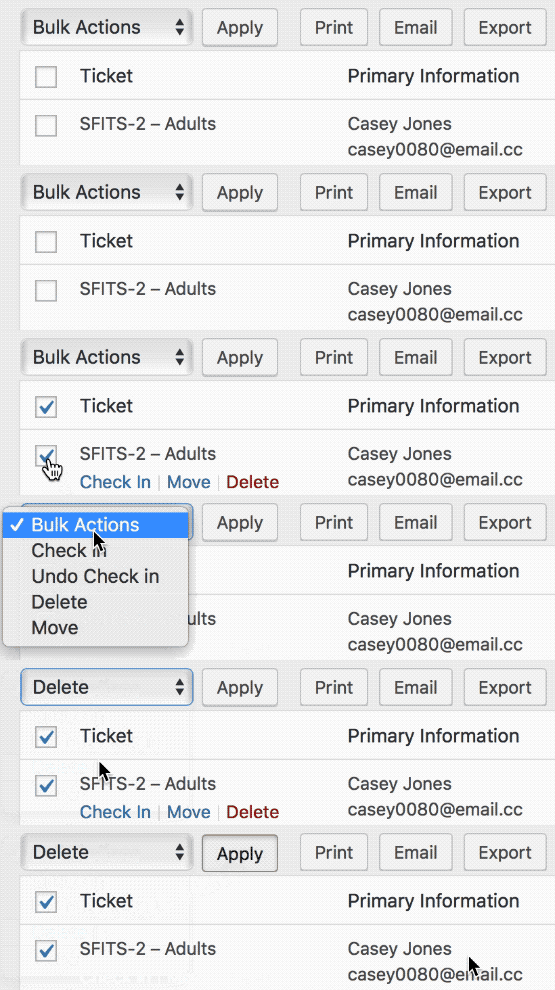
Note that deleting an attendee record will automatically increase the ticket capacity. If you delete the attendee, you do not need to make additional changes to the capacity as described below.
Capacity Considerations
If you choose not to delete the attendee associated with a refund but still want to increase the number of available tickets, you can do that manually by adjusting the ticket capacity. To do this, go to the edit screen for the event whose tickets you are dealing with. On this event’s edit screen, select the ticket(s) that you refunded and increment the available capacity by the number of tickets you refunded.
For example, if you refunded two tickets to the event “Jerry Seinfeld Live” and want to make sure that those two seats are made available for purchase again by someone else, head to the edit screen for the event named “Jerry Seinfeld Live.” Once there, scroll down to the Tickets page and click the name of the ticket that you previously refunded. You’ll see the previous number of available tickets in the Capacity field. Increase the capacity of the ticket by two and click the blue Save this ticket button to save your changes.
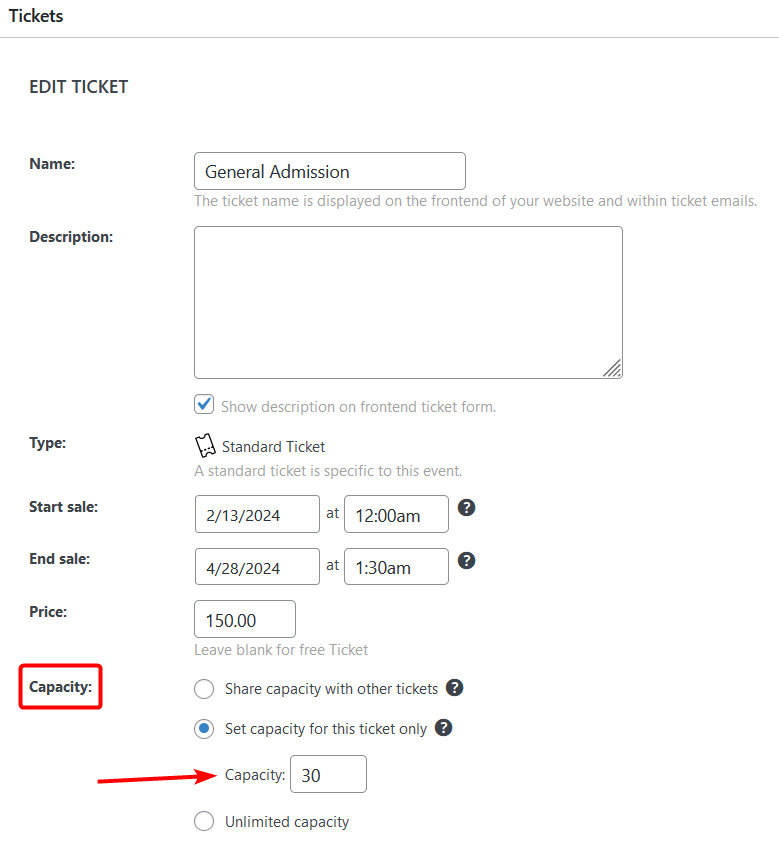
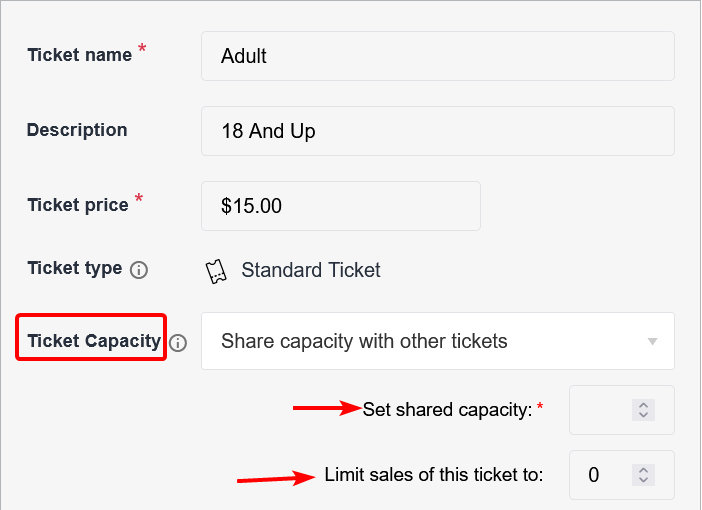
If you do not want the refunded seats to become available to other potential buyers, then simply process the refund or cancellation of the order—no other steps are required.
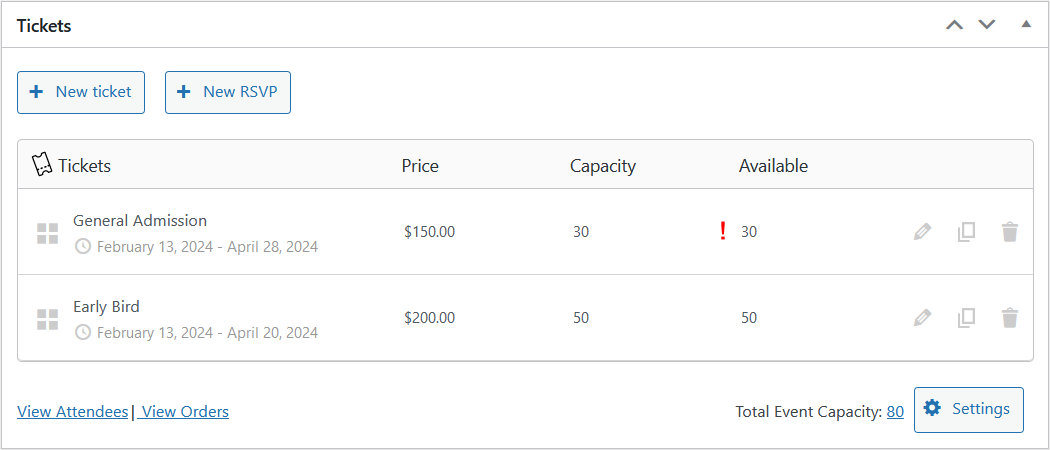
Note: The ticket editor will warn you when the number of Complete ticket sales does not match the number of attendee records generated by showing a red exclamation icon next to the number of available tickets. That means you should check the Attendees list and adjust ticket capacity as needed.
👋 Note: When using Seating for Event Tickets to sell tickets with assigned seating, ticket capacity is determined by the associated Seat Layout and Seat Type. If you refund an attendee and want their seat to become available to another buyer, go to the Attendees tab for the event and remove their seat assignment. That seat will then be available for purchase again. Read more
We hope this article helps to clarify the processes for handling refunds and cancellations with Event Tickets! If you have any other questions or concerns, please don’t hesitate to contact us at our help desk!