
Skip to content
  • My Account

Knowledgebase

  • Guides
    • Getting Started
    • Advanced Topics
    • Use Cases
  • Products
    • The Events Calendar
    • Events Calendar Pro
    • Event Tickets
    • Event Tickets Plus
    • Filter Bar
    • Event Aggregator
    • Community
    • Promoter
    • Eventbrite Tickets
    • Seating
    • Event Schedule Manager
  • Articles

Knowledgebase

  • Knowledgebase
  • Main Menu
  • Guides
    • Getting Started
    • Advanced Topics
    • Use Cases
  • Products
    • The Events Calendar
    • Events Calendar Pro
    • Event Tickets
    • Event Tickets Plus
    • Filter Bar
    • Event Aggregator
    • Community
    • Promoter
    • Eventbrite Tickets
    • Seating
    • Event Schedule Manager
  • Articles
  • Products
    • Calendar
    • Tickets & RSVP
    • Import Events
    • Community Submissions
    • Promote
  • Bundles
    • The Complete Collection
    • Event Marketing Bundle
    • Events Importer Bundle
    • Virtual Event Marketing Bundle
    • Community Manager Bundle
  • Resources
    • Get Help
    • Release Notes
    • Developer Docs
    • Feature Request
  • Demo
  • My Account

Putting a Subscription on Hold

Last Updated:Aug 5, 2021

Plugin licenses are sold as subscriptions that automatically renew one year after purchase. That’s to make sure there are no lapses in the subscription that would cause you to lose access to support and product updates.

That’s exactly what a license subscription earns you: the ability to open tickets with the folks on our support team and access to plugin updates when they are released. You can pause your license subscription at any time and continue to use the current version of the plugin indefinitely.

And, of course, when a license is put on hold before the renewal date, it is still active and you will continue to be able to work with the support team and access plugin updates up until the term has fully expired. You paid for it, so you get to keep using it!


Pausing automatic license renewals

If your plugin subscription expires, you will not lose any data or events that were previously entered and you can continue using the plugin as normal. What you lose is being able to download new updates, which means you won’t get new features or bug fixes. The support team over at the Help Desk will also miss you a lot.

  1. First head to https://theeventscalendar.com/my-account/subscriptions/ 
  2. Click the Manage button next to the subscription.
  3. On the next page, there is a toggle in the “auto renew” column. Turn this off, and your subscription will not be renewed when it expires.
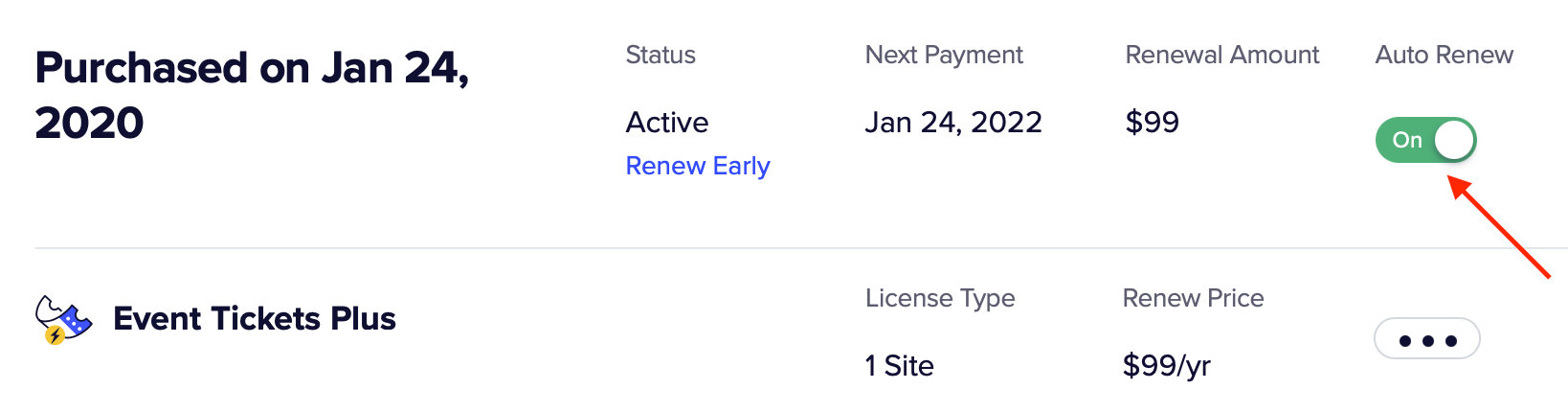
 

Turn off auto-renew for subscription
TAGS:
  • user account

Notify us of out of date information
CONTENTs
  • Pausing automatic license renewals
Event Seating product

RELATED ARTICLES:

  • How to Replace webcal:// with https:// in iCal Links
  • How to Show Only Weekend Events in List View with The Events Calendar
  • Changing Ticket and RSVP Labels
  • How to Add a Custom Currency in Tickets Commerce
  • Adding event description into PDF ticket

ACCOUNT TOOLS:

  • Support Resources
  • My Account
  • Contact Support
  • Downloads and Licenses
  • Manage Subscriptions

A Liquid Web Brand

Hosting for WordPress

© 2023 All Rights Reserved.