When selling tickets to events, offering discounts can be a powerful way to boost sales, reward loyal attendees, or run limited-time promotions. With the new Coupons feature in Event Tickets, you can now create percentage-based or flat-rate discounts directly within Tickets Commerce. This flexible tool gives you full control over your promotional strategy—making it easier to market your events, drive attendance, and deliver value to your audience.
👋 Note: This article describes how to add coupons using our own Tickets Commerce. If you’re looking to add coupons using WooCommerce, you can find that article here.
Creating coupons
To create a coupon, from your WordPress dashboard select Tickets → Coupons & Fees → Coupon tab → Add New.

Once there you will see this coupon creation screen:
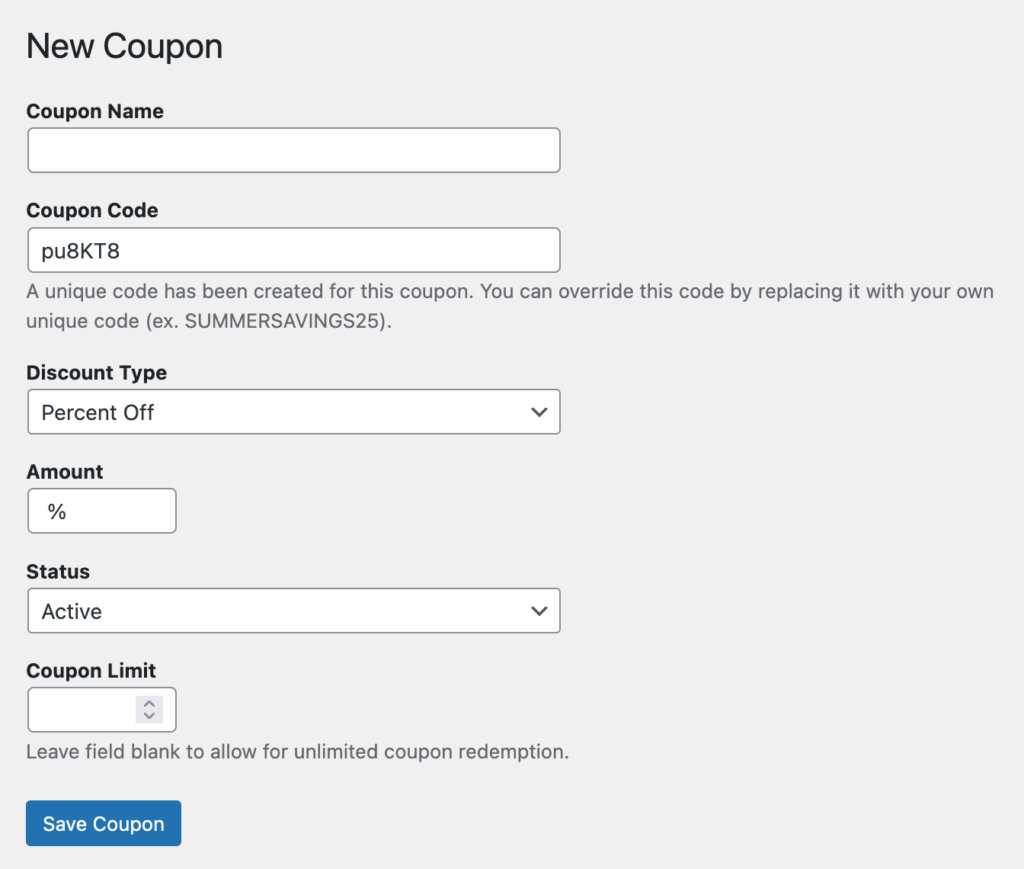
There are a few options here – so let’s walk through them individually.
Coupon Name
This is the internal name for your coupon, visible only in your WordPress admin. Use a name that helps you identify the promotion (e.g. “Early Bird Discount” or “VIP Offer”).
Coupon Code
This is the code attendees will enter at checkout to receive the discount. While we generate a unique coupon code, you can customize this code to anything you’d like. Common examples include:
EARLYBIRD10SUMMER25FRIENDS2025
Discount Type
Choose how the discount is applied:
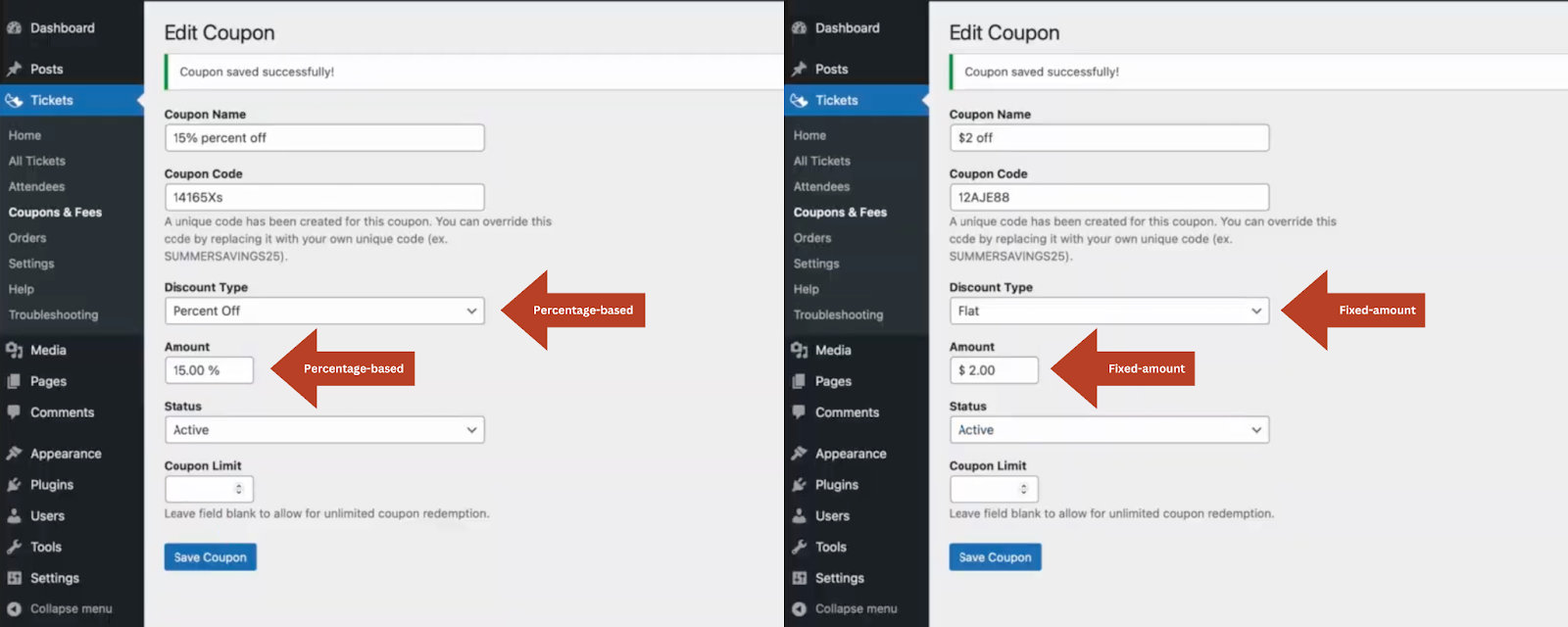
- Percentage – Applies a percentage-based discount (e.g. 10% off the total order price).
- Flat Fee – Deducts a fixed dollar amount (e.g. $5 off each order).
Amount
Enter the discount value. This will correspond with the discount type you’ve chosen—either a percentage (e.g. 15% off) or a flat dollar amount (e.g. 5$ off).
Status
Controls the availability of the coupon:
- Active – Coupon is live and can be used at checkout.
- Inactive – Coupon is disabled and cannot be used.
- Draft – Coupon is saved but not yet available for use.
Coupon Limit
Set the maximum number of times this coupon can be used across all customers. Leave blank for unlimited usage.
Using the coupons
During Checkout, a new field will be available called “Add coupon code” and once pressed, you can enter the coupon code, and apply it.
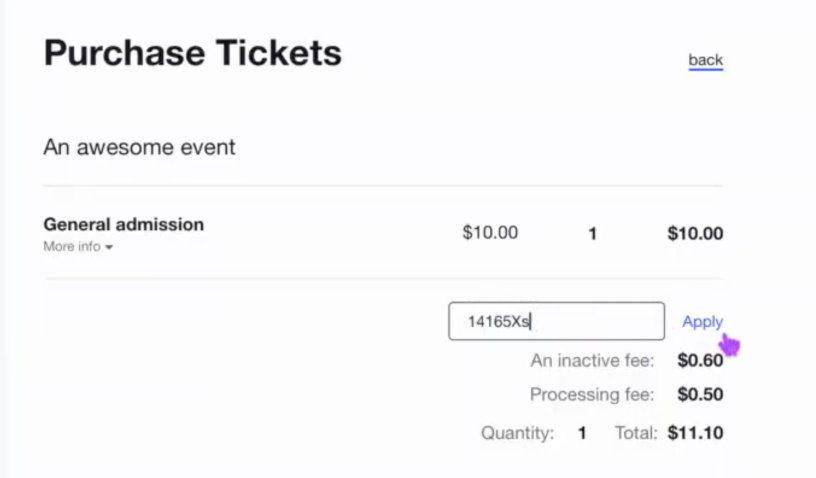
👋 Note: If you have any Booking Fees active, the coupon will not apply to them, and will only apply to the ticket price.
Once an order with a coupon as gone through, as an admin, you will see the coupon in the order on the WordPress admin dashboard:
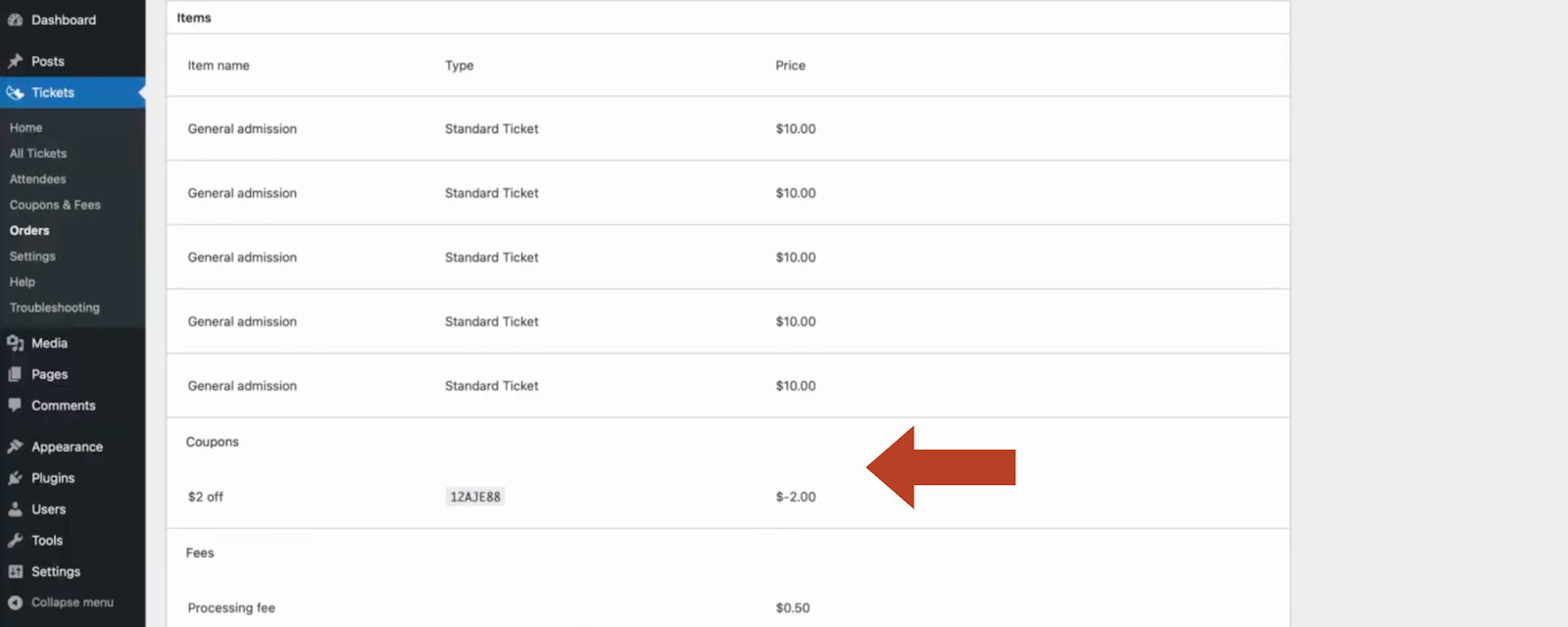
Coupon usage tracking
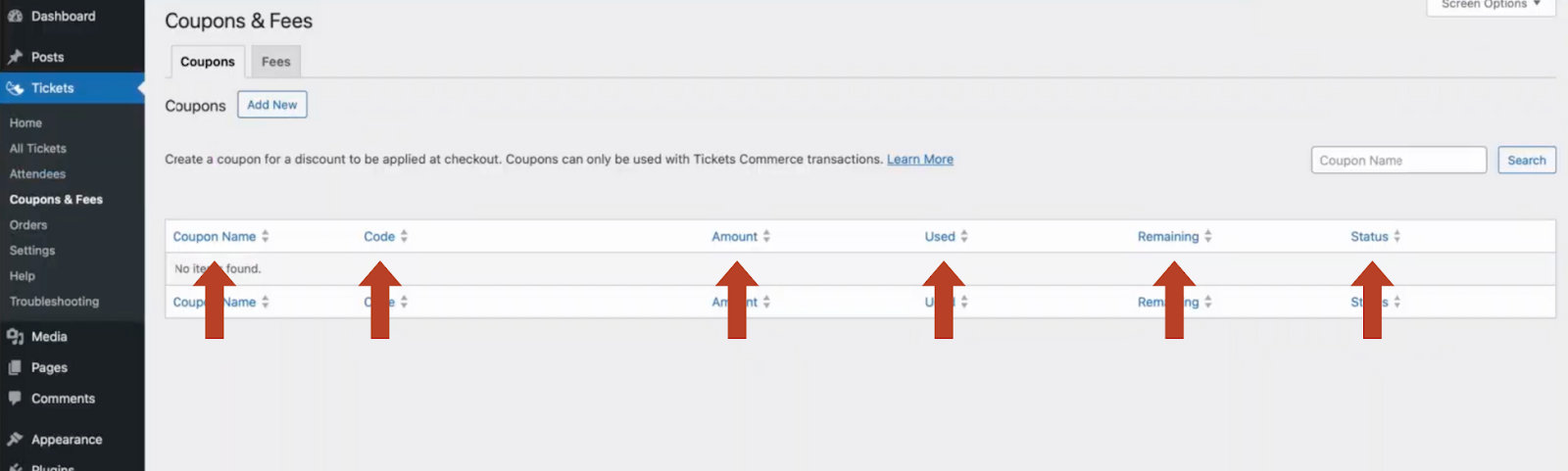
You can go to Tickets → Coupons & Fees → Coupon tab where you’ll see key details such as how many times a coupon has been used, how many uses remain, and its current status.