
If you’re using The Events Calendar along with Community Events, you may want to add a button or link to allow users to easily access the event submission form.
Here’s a simple way to do that using the built-in settings:
Step-by-Step Instructions
- Go to Your WordPress Dashboard
- Navigate to Events > Settings > Display > Additional Content Settings
- Add Custom HTML or Text
- In the “Add HTML before calendar” field, insert the following HTML:
<div class="eventSubmitButton">

<a href="https://yourwebsite.com/events/community/add/" class="tribe-common-c-btn">Submit Event</a>

</div>- Replace https://yourwebsite.com/events/community/add/ with the actual URL of your Community Events submission form.
- Save Your Settings
- Scroll down and click the “Save Changes” button.
Example:
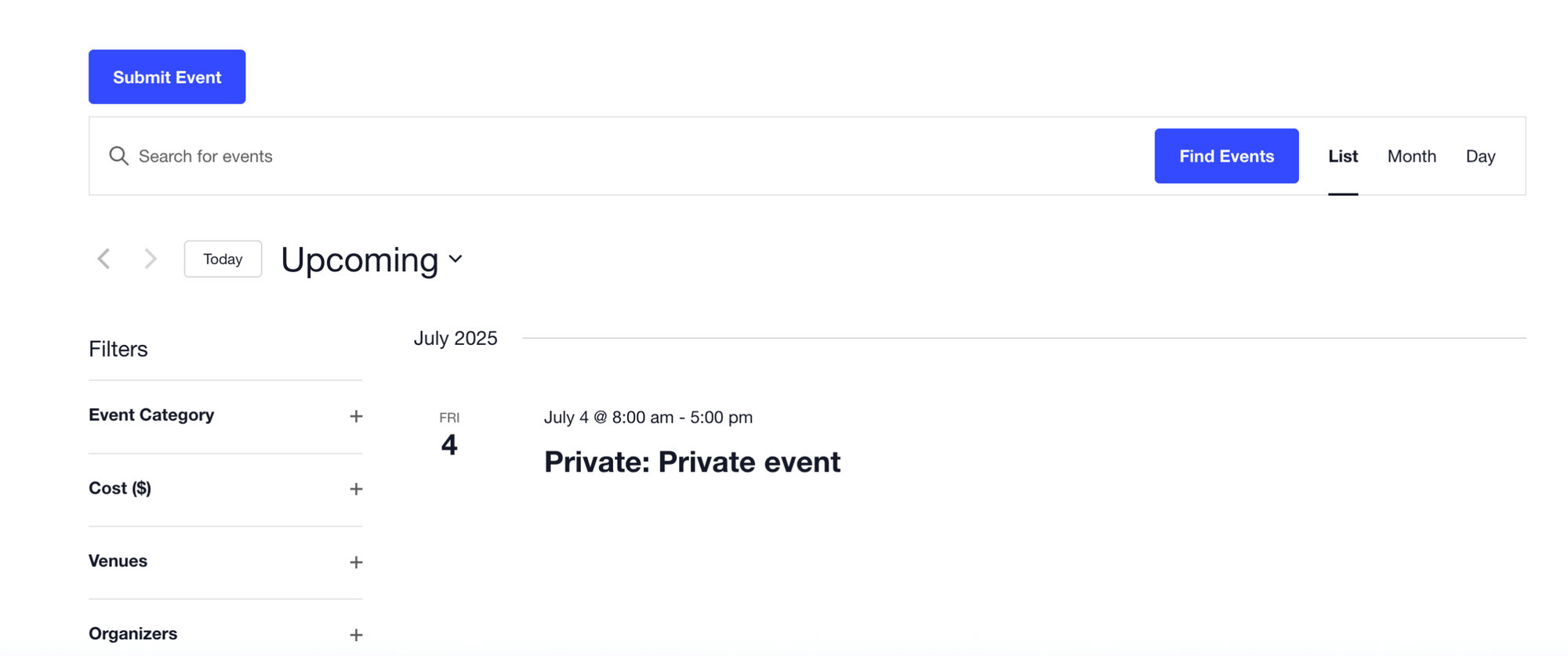
Result
This will display a “Submit Event” button above your main calendar view, allowing users to easily navigate to the event submission page.
Notes
- You can style the button further with custom CSS if needed.
- Ensure the Community Events plugin is installed and active for this to work.
This method provides a simple and user-friendly way to guide your visitors to submit their own events on your website.
Tested with:
The Events Calendar Pro: v7.6.1
The Events Calendar: v6.14.0