
Create a scheduled message by clicking into the event for that message, then click on the Create Message button on the screen.
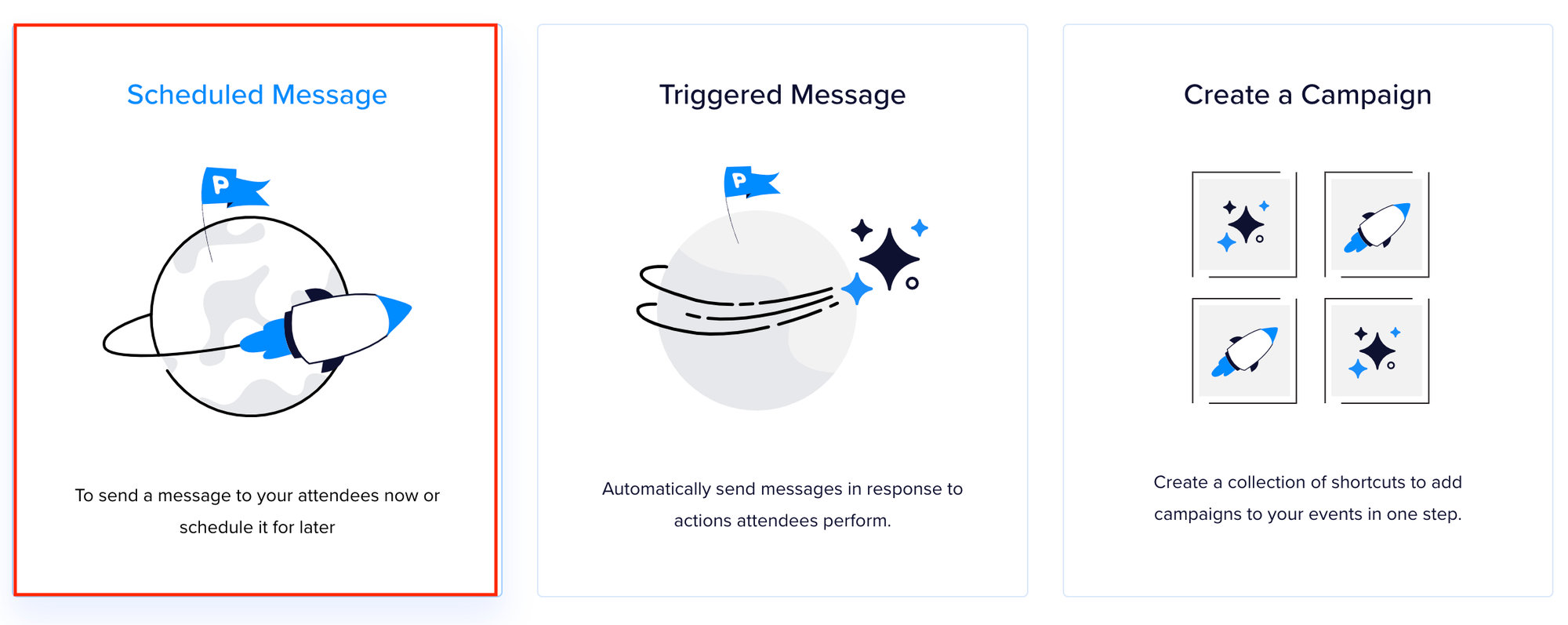
Clicking on the button will present you with two options: scheduled message and trigger-based message. Let’s select the scheduled message option.
You will then be presented with the message editor to customize things to your liking.
- Choose an admin title for your message – This is recommended but not mandatory

- Choose an Audience – choose who will receive your message. Using the dropdown menu, you can select one or several audiences:

- The attendee lists for this event (attendee lists contain people who have purchased a ticket for the event or simply registered for the event)
- The attendee lists of other events
- Your custom lists
- Who is sending this email? – Set the name and email address that appears in the reply-to line of the email. By default, this will use the name and email of the Promoter account.

Important: If you’re using your own domain for sending emails, the “From” email will be taken from the Mail Delivery Settings page, while the “Reply-To” email will default to your Promoter account email. - Customize message – Enter the subject line and content for the email message. You can: style the message, create hyperlinks, add buttons and insert images in the content area.

- Using Merge Tags – Add dynamic content to your message. See the Merge Tags guide for more details.

- Schedule when the message goes out – Sets the date and time that the email will be sent. See the Send and Scheduling guide to learn about the various options available.
