
Overview:
If you need to export an attendee list that includes all custom fields, simply exporting from the Attendees menu under the Tickets section may not capture all the data. Instead, follow the steps below to ensure your export includes attendee responses to all custom fields.
Steps to Export the Attendee List with Custom Fields
- Go to your WordPress dashboard and navigate to Events > Events. Find the event for which you want to export the attendee data.
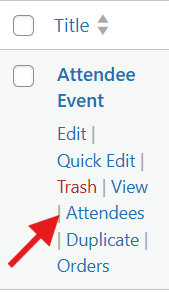
2. Hover over the event and click on Attendees. This will take you to the list of attendees for that specific event.
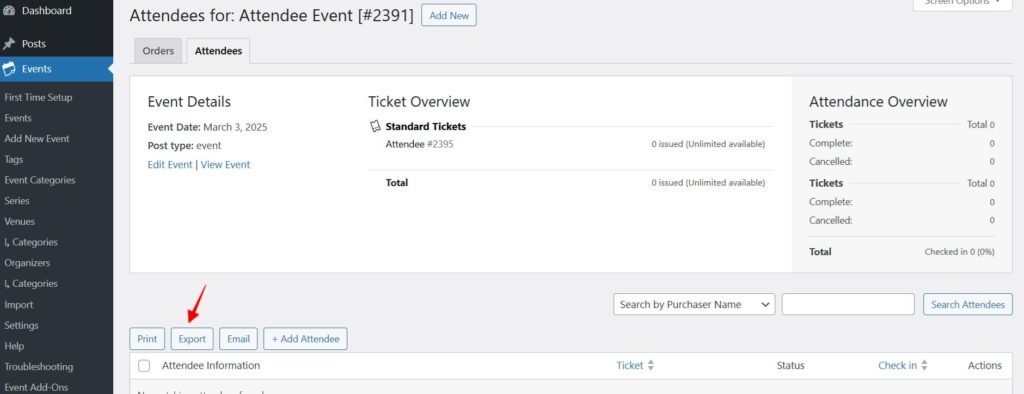
3. On the Attendees page, look for the Export button. Clicking this will generate a CSV file that includes all attendee details along with their responses to any custom fields, such as additional questions added via ticket fieldsets.
Why Use This Method?
- This method ensures that all custom field data is included in the export, providing a complete and detailed attendee list with relevant responses.
- It allows for an easy and structured way to retrieve attendee data while maintaining an accurate record of event registrations.
By following these steps, you can successfully export attendee data with all custom fields,