
Setting up ticketing for your events is simple and accessible with the Event Tickets, a free tool that allows you to create, customize, and manage tickets directly on your WordPress site. For basic ticketing functionality, such as creating and managing tickets, you do not need the Event Tickets Plus version. The free version includes everything you need to get started with ticketing for your events.
If you’re hosting webinars, workshops, or larger events, the free version provides all the tools necessary to set up and sell tickets. While the Pro version offers additional features like enhanced design options, recurring events, and advanced reporting, it is not required for setting up or managing basic tickets. This guide will walk you through configuring basic ticket settings and creating tickets.
Prepare Your Content for Ticketing
To begin, create a post, page, event, or custom post type where you want tickets to appear. Ensure ticketing is enabled for the chosen content type in the plugin’s settings.
Add a New Ticket
- Scroll to the Tickets section on your content editor page.
- Click the ‘New Ticket’ button.
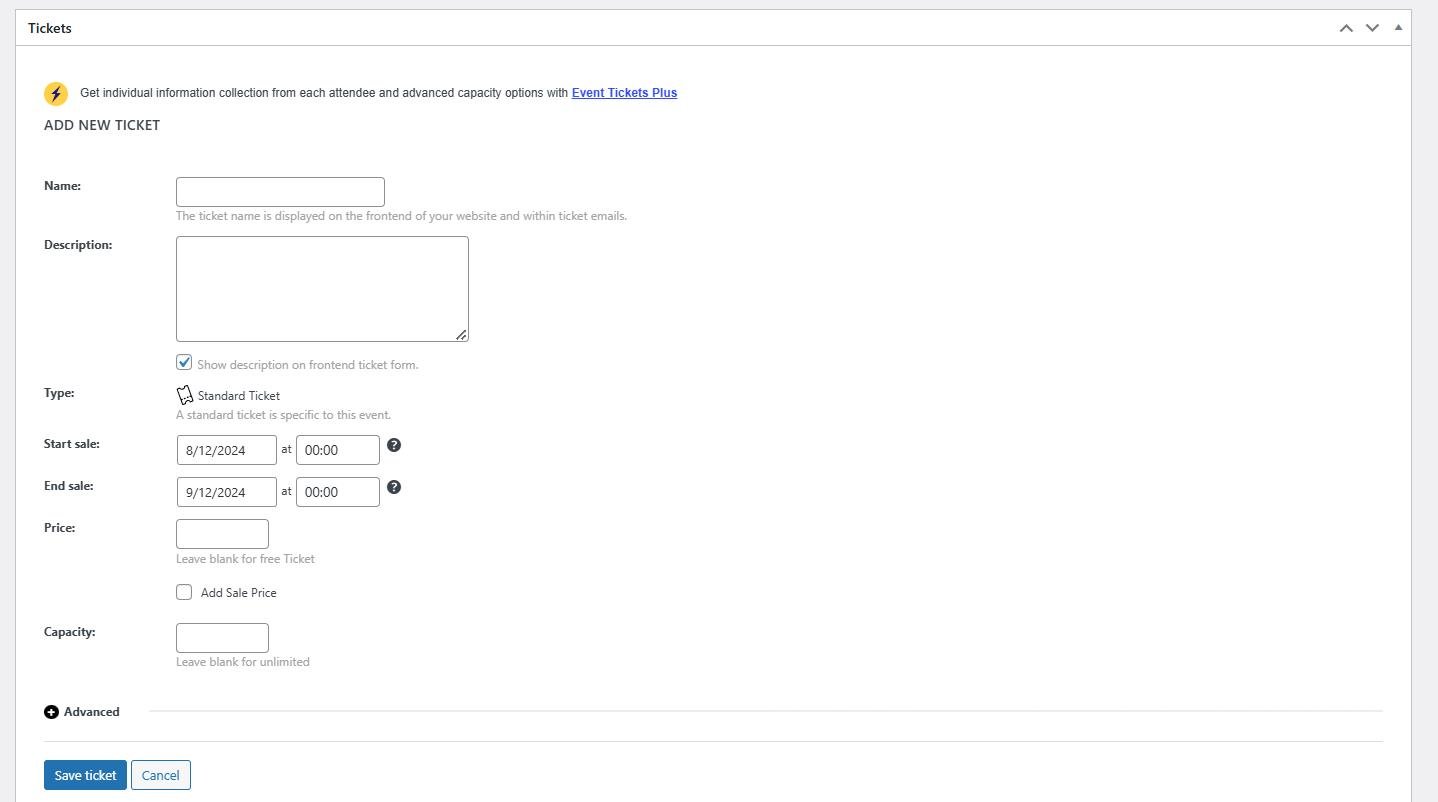
A ticket creation box will appear, prompting you to fill in ticket details.
Fill Out Ticket Details
Complete the fields in the ticket creation box:
- Mandatory Fields:
- Ticket Name: Enter a name that clearly identifies the ticket.
- Sale Dates: Specify the start and end dates for ticket availability.
(Note: Tickets cannot be saved without these fields.)
- Optional Fields:
- Description: Add supplementary details about the ticket.
- Capacity: Enter the maximum number of tickets available. Leaving this blank sets the capacity to unlimited.
- Price: Set the ticket price. Leaving this field blank will create a free ticket.
- Advanced Options:
- Use the SKU field to assign a unique identifier for tracking and inventory management.
Save Your Ticket
After filling in the required and optional fields, click Save to finalize the ticket. You can edit these details later if necessary.
Quick Tips
- Ensure that the Ticket Name and Sale Dates are always provided; otherwise, the ticket cannot be created.
- Leaving the Capacity field empty allows unlimited ticket sales.
- Free tickets are automatically created if the Price field is left blank