
The translation of plugins for non-English sites is a must. You can either translate strings manually using the plugin language file or through a third-party plugin like Loco Translate.
In this article, we will be going through the steps for translating The Events Calendar strings, specifically views labels, using Loco Translate.
- The first step is to install and activate Loco Translate on your WordPress site.
- You should also change the site language under WP Settings > General.
- To start translating The Events Calendar language file, go to Loco Translate > Plugins and find The Events Calendar from the list.
- Choose the language you’d like to translate The Events Calendar into. In this example, we selected French language.
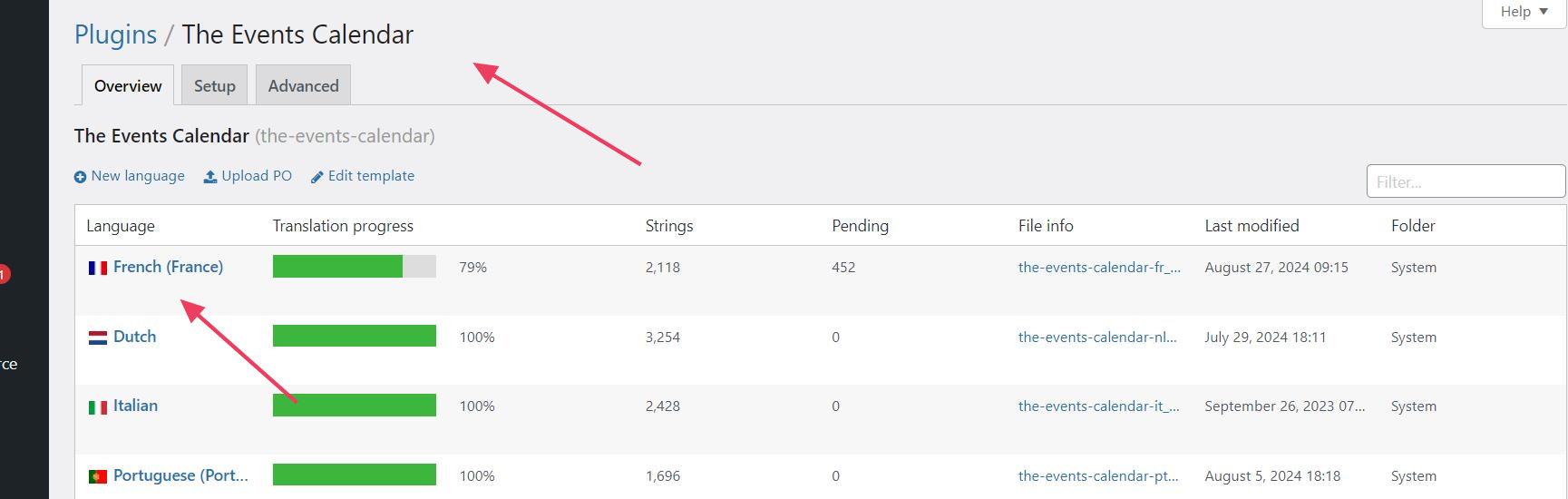
- After opening the file, before translating it, click the “Sync” button to update it. This will ensure you have all strings ready to translate.
- To translate calendar views labels including “day”, “List”, and “Month”, you should search for “The text label for the” string and translate the corresponding text:
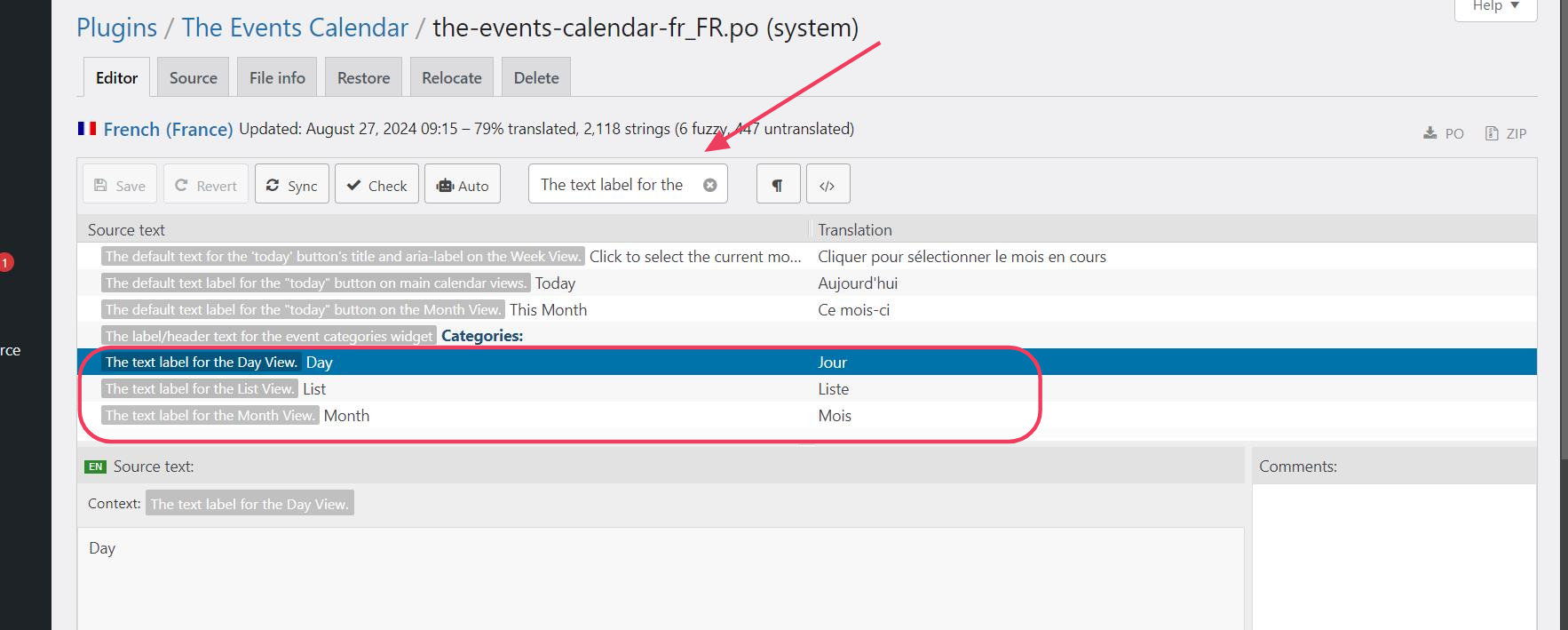
- Once the translation is done, save the file, and you’re good to go.
- Note: in case you’re using a caching plugin, make sure to clear the cache to see the changes.
The Events Calendar and other extensions language files can be translated into your own language using Loco Translate by taking the above steps.