
As of Events Calendar Pro 6.0, you can now duplicate your events. This premium feature allows users who create many similar events to recreate events quicker and easier from the WordPress Dashboard.
Duplicate events from the admin Events list
To find the Duplicate Events feature, simply head over to Events in the WordPress Dashboard and hover over the event that you’d like to duplicate.

Once you click on the ‘Duplicate’ link, you’ll be taken to the single event page of the new duplicate event. From there, you can publish it immediately, or make any additional changes first (like the date and time).
Duplicate events from the single event page
You can also find the Duplicate Event button on the editor page of the event that you’d like to duplicate.
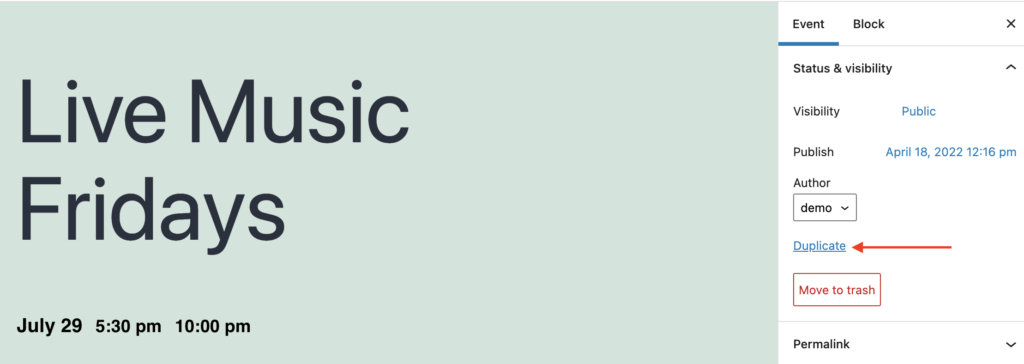
A new window will open with your duplicated event, where you can make any changes you’d like before publishing.
Important notes about duplicate events
- This feature is only available in Events Calendar Pro
- When an event is duplicated, any tickets created for that event will also be duplicated.
- If you are duplicating a recurring event, the additional occurrences won’t be generated until you save the duplicate.
- Having many events with the same content may have some SEO implications, so be sure to read the article How Recurring Events can Impact your SEO Results (And How to Improve that).