
When managing tickets with Tickets Commerce, the situation may come up where you’d like to issue a refund to a customer. This requires logging in to the PayPal Dashboard, locating the order, and refunding the customer there. Then, you’ll want to return to your WordPress site to manually return the ticket. We’ll walk you through the steps here!
Refund the order with PayPal
Start off by logging in to the PayPal Dashboard.
Once there, you’ll want to locate the ticket you’d like to refund. It’s important to note here that you’ll need to locate the PayPal transaction ID, and not the Order ID that is associated with the order in WordPress.
You can find this ID number by visiting https://your-site.com/tickets-order/?tc-order-id={GATEWAY_ID_FROM_LIST}.
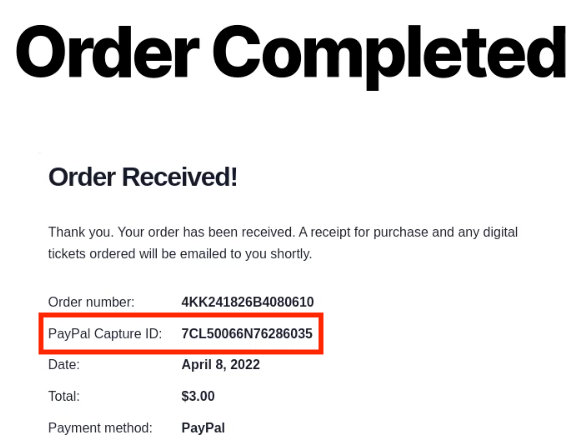
Once you find this number, you can easily issue a refund directly from the PayPal Dashboard. Your site will be notified using PayPal IPN (Instant Payment Notification) and the order status will be reflected on your orders page.
- IPN notifications may take a few minutes to reach your site so order status changes may not happen immediately.
- Tickets and attendees with assigned seating cannot be moved
Ticket Capacity & Attendees
The ticket stock will not automatically increase, so if you’d like to be able to sell that spot to another person, you’ll have to manually delete the attendee that you refunded, as described here.