
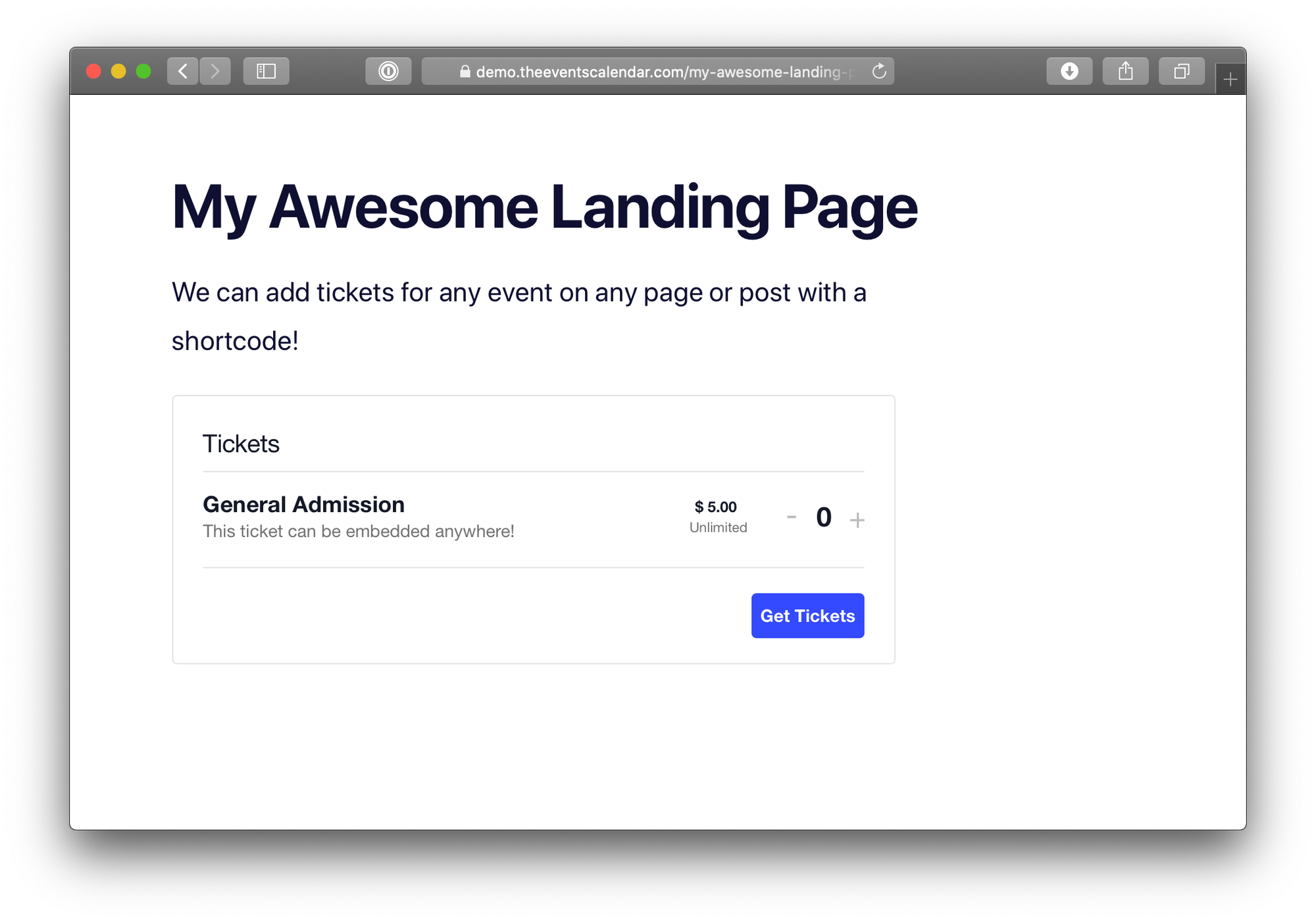
Let’s say you’ve just created tickets for your event using the Event Tickets plugin — with the Event Tickets Plus add-on installed — and those tickets are displaying nicely on your event page. Now, what if you want to embed your tickets, say, on your homepage? Maybe you’ve created a landing page promoting the event and would like to drop the tickets in there.
That’s exactly what the [tribe_tickets] and [tribe_tickets_rsvp] shortcodes are designed to do. Add those to any WordPress page or post (including custom post types) to display tickets and RSVPs — or both! — for a given event.
Requirements
Both Event Tickets and the Event Tickets Plus add-on are required to use the shortcodes.
Tribe Tickets shortcode
[tribe_tickets post_id="123"]
The [tribe_tickets] shortcode displays the tickets block when used on a WordPress page or post. It typically requires the post_id parameter, which is the ID of the event (post or page, depending on your site configuration) where the tickets were created.
Note: In certain cases, such as when creating dynamic templates or using a page builder, the post_id parameter may not be necessary. See the section below for more details.
Finding the Post ID can be tricky in WordPress. One way is by editing the page or post and locating it in the browser’s address bar.

Another way to locate the a page or post ID is to navigate to the attendee report for that event.

Tribe Tickets RSVP shortcode
[tribe_tickets_rsvp post_id="123"]
This shortcode displays the RSVP form and typically requires the post_id parameter, which represents the ID of the event, page, or post where the RSVP was created.
Note: In certain cases, such as when creating dynamic templates or using a page builder, the post_id parameter may not be necessary. See the section below for more details.
Displaying Tickets via Shortcode
You can also use a shortcode to display singular or multiple tickets on a page or post. To do this, you can use the ticket_id parameter, so it’ll look something like this: [tribe_tickets post_id="12" ticket_id="29"] or [tribe_tickets_rsvp post_id="13" ticket_id="30"]. You can find the ticket ID in the attendee report.
Using the [tribe_tickets] and [tribe_tickets_rsvp] Shortcodes Without post_id Parameter
In some cases, for example when building dynamic templates using a page builder (e.g., Avada, Elementor) or when manually rendering content with do_shortcode(), these shortcodes do not necessarily require the post_id parameter. If no post_id is provided, the shortcode will automatically detect and use the ID of the current post.
This can be useful when creating templates that pull in dynamic content, as it allows for more flexibility without the need to manually specify the event ID each time.
Keep in mind that this only works when the shortcode is rendered in the context of a specific post or event.