
Our team regularly releases updates to The Events Calendar and its add-ons, which can be installed directly in the WordPress admin of your site when they are available.
But what if you update to the latest version and decide to go back to a previous version instead? That’s totally possible.
Free plugins
WordPress.org automatically keeps copies of The Events Calendar, Event Tickets, Image Widget, GigPress, and Advanced Post Manager on the plugin page, under the “Advanced” view.
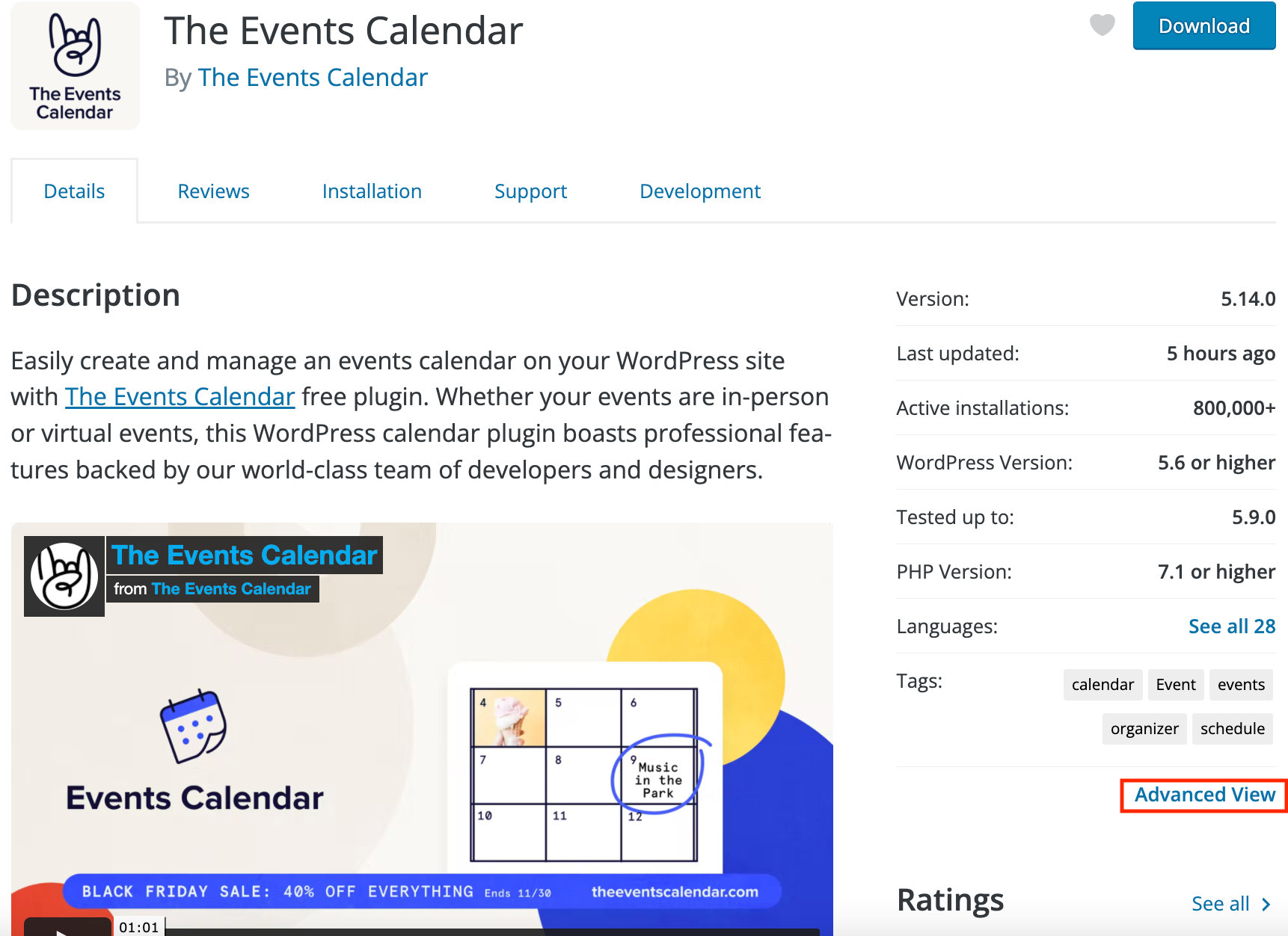
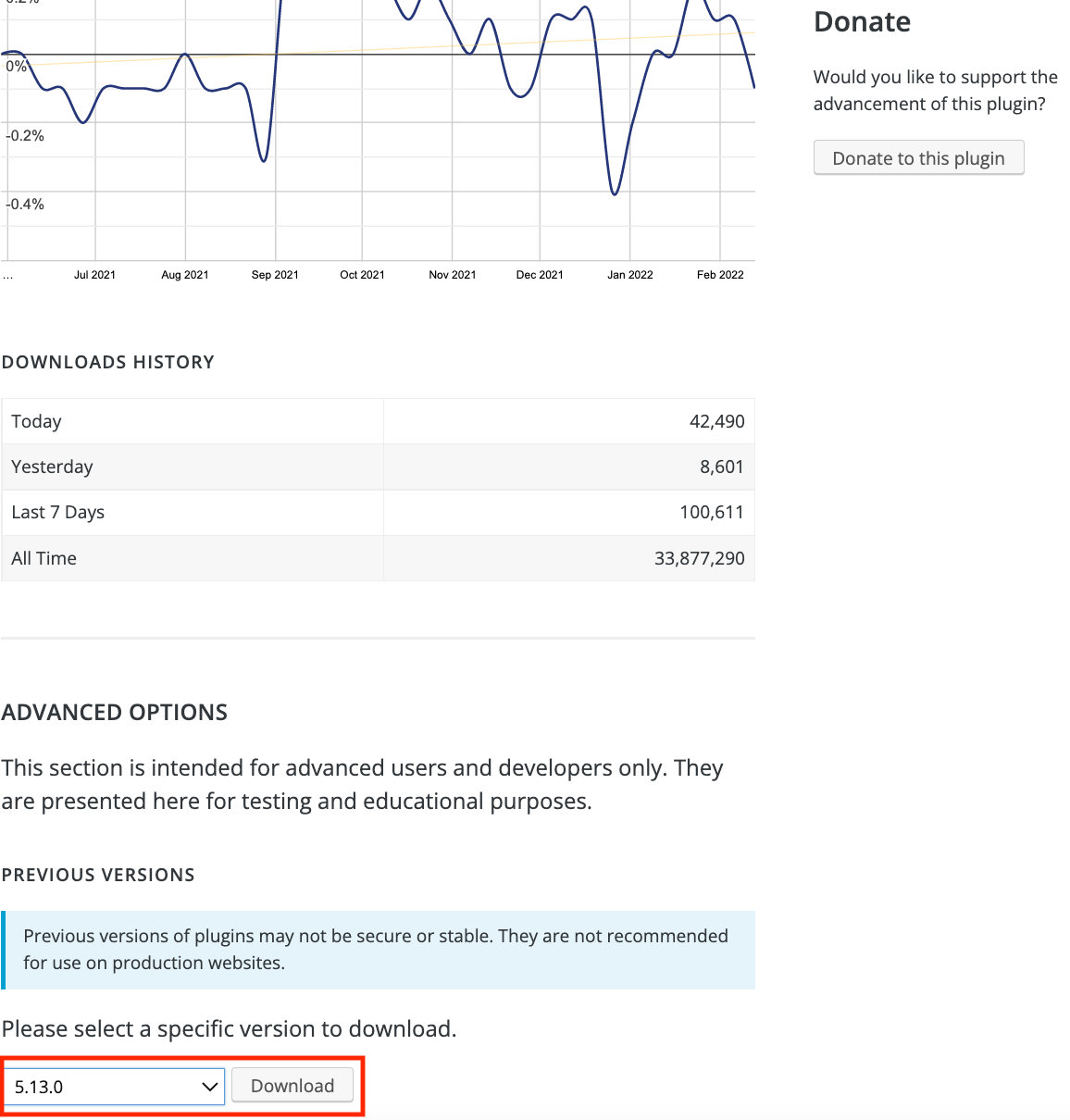
Here are direct links to the Advanced View of each free product we offer on WordPress.org:
Premium add-ons
We make past versions of our premium add-ons available on our website. Log into your account and navigate to the Downloads & Licenses screen. There’s a “Version” that provides an option to select and download a previous version for each add-on you have purchases, all the way back to the first version that was available when you first made the purchase.

Installing past plugin versions
OK, so you’ve found the version of the plugin you need. Now what, right? It can be installed just like any other WordPress plugin:
- Make a backup. Just to be completely safe, WordPress recommends that you make a backup of your site before upgrading plugins. The same is true when downgrading. In general, events and settings information will be preserved through an update or downgrade. But you always want to back up in case something goes sideways.
- Add the new version. Click the “Add New” button on the Plugins screen. From there, you’ll click an “Upload Plugin” button on the next screen, which lets you upload the ZIP file of the older plugin version from your computer.
You will be asked if you want to replace the existing version with the one you are just uploading. Click “Replace current with uploaded”. - Activate the plugin. You’re now able to head back to the Plugins screen and click “Activate” next to the plugin.
Downgrading/upgrading using a plugin
Alternatively, you can downgrade or upgrade plugins using a solution such as WP Rollback plugin. This plugin allows you to rollback any theme or plugin from WordPress.org to any previous (or newer) version. It works just like the plugin updater, except you’re rolling back (or forward) to a specific version.
Please note that this plugin is not intended to be used without first taking the proper precautions to ensure zero data loss or site downtime. Always be sure you have first tested the rollback on a staging or development site prior to using WP Rollback on a live site.
💡 Note: WP Rollback plugin only works with plugins or themes installed from the WordPress Repository. Premium plugins do not support this feature.