
WPML is the most popular multilingual plugin for WordPress, with over 1 million installations. Using WPML and The Events Calendar, you can translate your Events into other languages, and make your website accessible to people from all over the world.
Please note – while we strive to be compatible with WPML and make significant efforts, we cannot guarantee 100% compatibility. At the moment, WPML is only compatible with the following plugins and add-ons:
- The Events Calendar
- Events Calendar Pro
- Filter Bar
This article covers setting up WPML with The Events Calendar. If you are looking for more information about setting up our Filter Bar add-on with WPML, please read our dedicated guide on this topic.
Getting Started
WPML is a premium plugin, so you first need to buy a plan in order to use it. To learn more about WPML’s features and buy a plan, visit the WPML website.
Configuring WPML
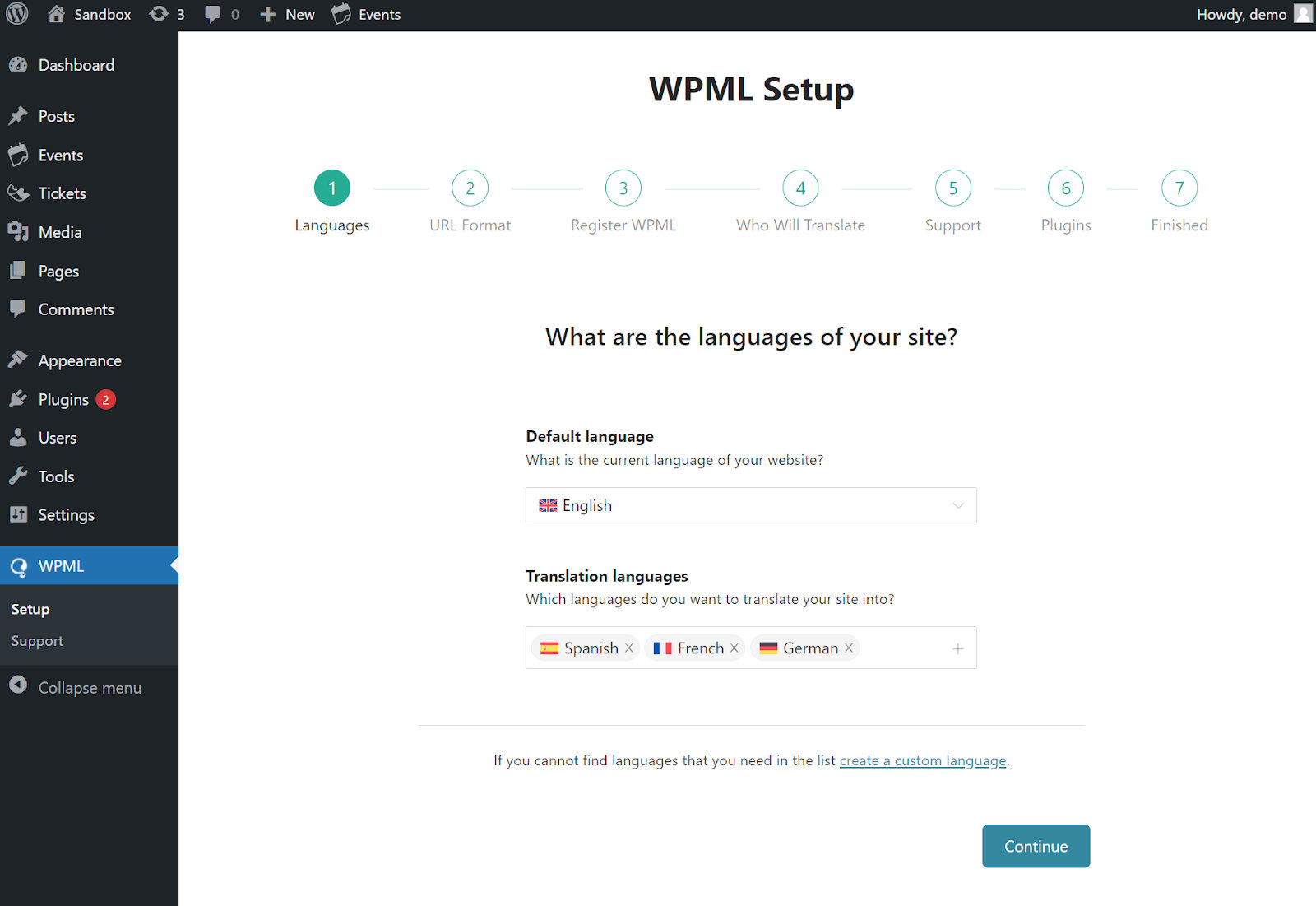
WPML comes with a short setup wizard to help you configure some basic settings. This includes selecting the languages you want to translate into, choosing a URL format, adding a team of translators, and installing any necessary add-ons.
Once started, it is recommended that you completely set up WPML without navigating away from the process.
Translating The Events Calendar with WPML
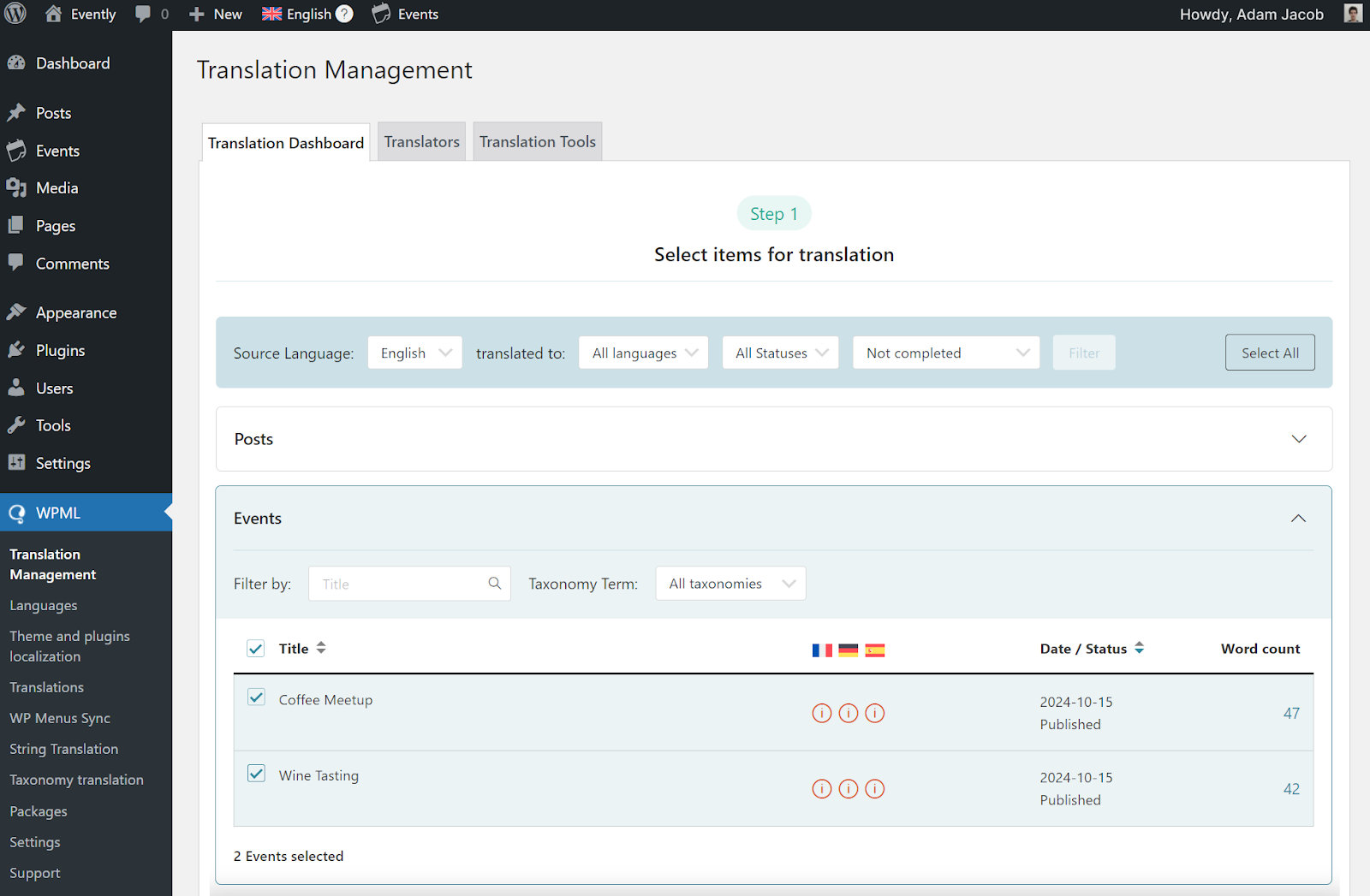
To translate any Event Calendar element, start by going to WPML → Translation Management. From here, you can translate Events, Venues, Organizers, and any other content related to the Events Calendar.
To choose content for translation, simply select the items you want to translate.
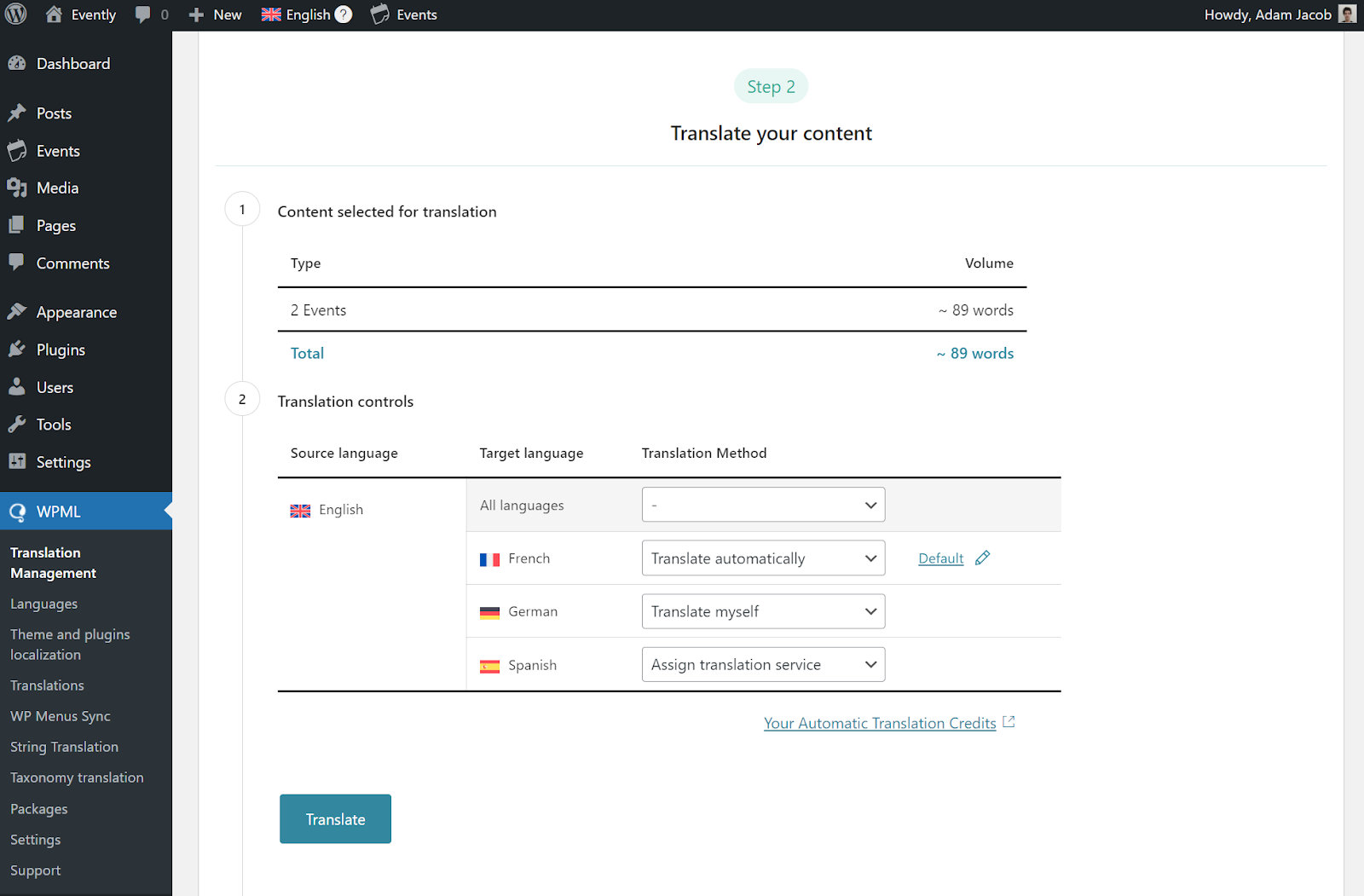
Next, scroll down to Translate your content and select your translation method. For the best translation quality, we recommend translating automatically with WPML AI, WPML’s most powerful machine translation engine powered by ChatGPT.
If you don’t want to translate automatically, WPML also lets you translate by yourself, with your team of translators, or with professional translation services.
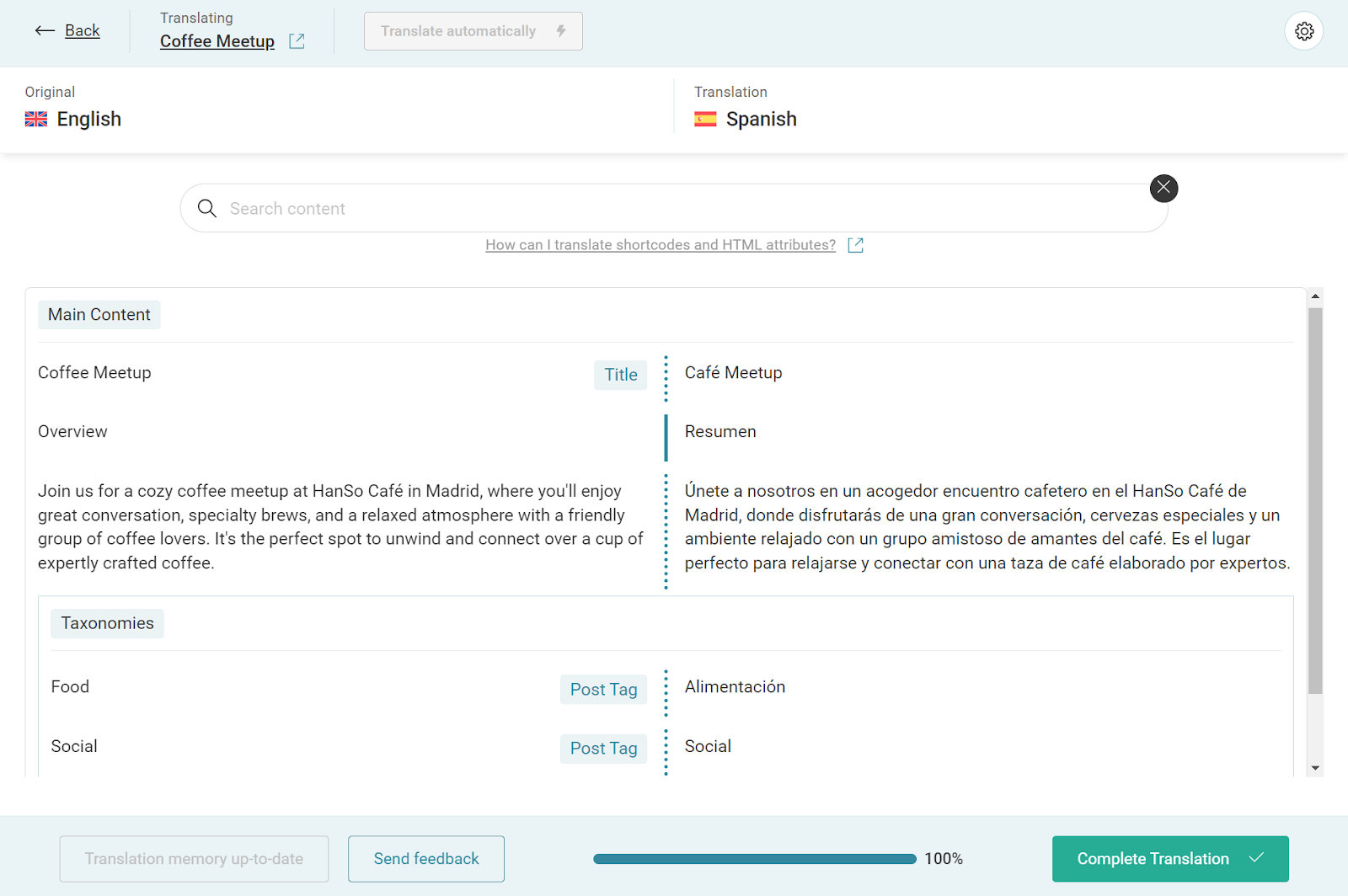
Finally, go to WPML → Translations to review your automatic translations, or manually enter your own.
Once done, your translations will appear on your website when switching languages.
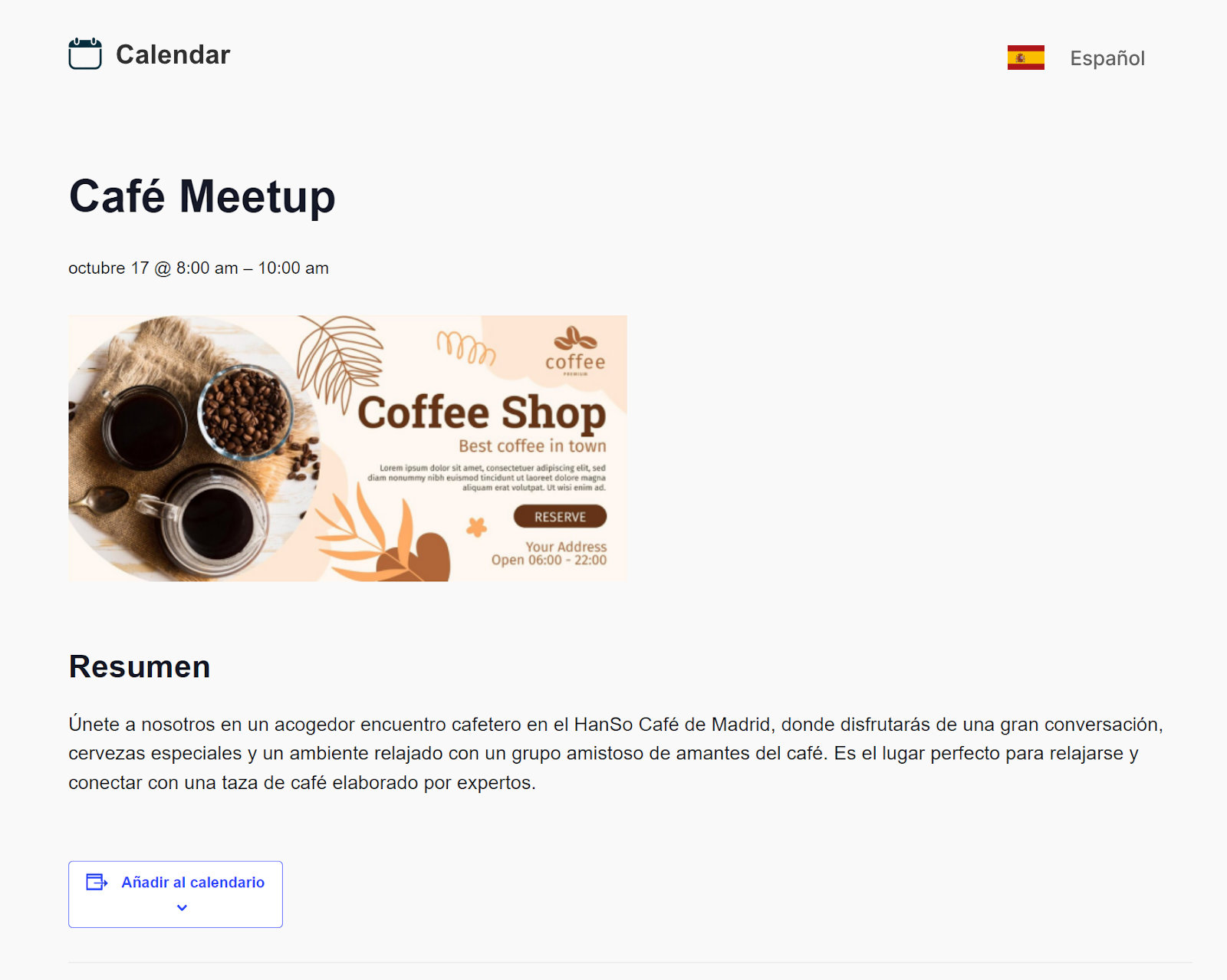
Translating Filter Bar
By default, WPML automatically fills in translations for the texts on the events archive page. This includes the Filter Bar, top panel filters, and any other texts on the page.
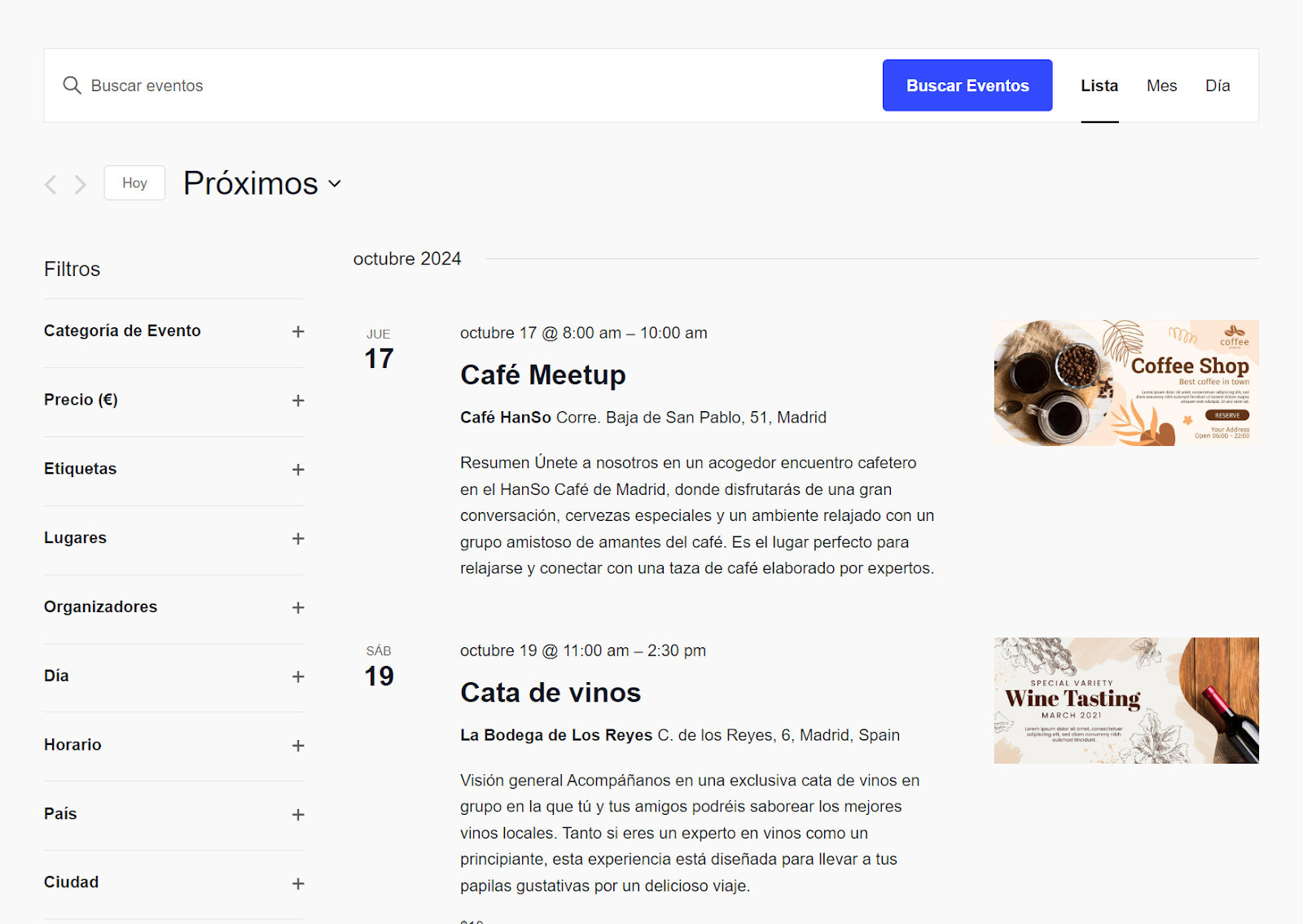
Translating Other Texts
If you find untranslated texts on your site, and there’s no section in Translation Management that contains this content, scroll down to the Other texts (strings) section at the bottom.
This section contains texts from your theme and other WordPress plugins, including extensions and add-ons from The Events Calendar.
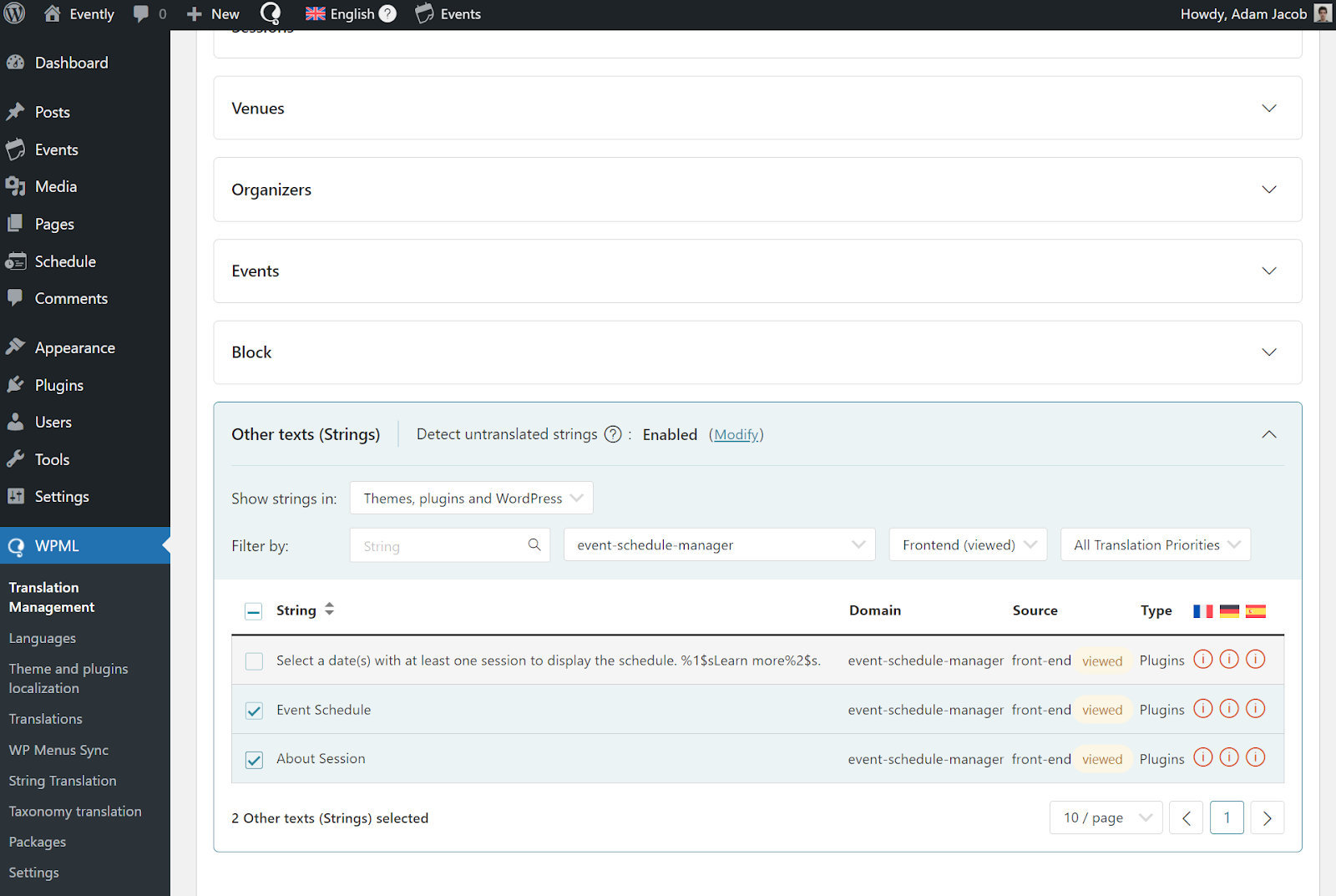
To translate texts in the Other texts (strings) section, simply select the texts you want to translate and follow the steps previously covered.
Displaying Untranslated Content in Other Languages
If you’re using one of the non-compatible addons or extensions, you can still display this content in other languages – untranslated. Meaning, the content will appear in your default language across all languages.
To enable this option, head over to WPML → Settings and scroll down to Post Types Translation. Locate the type of content you want to display untranslated in other languages and set its translation setting to Translatable – use translation if available.
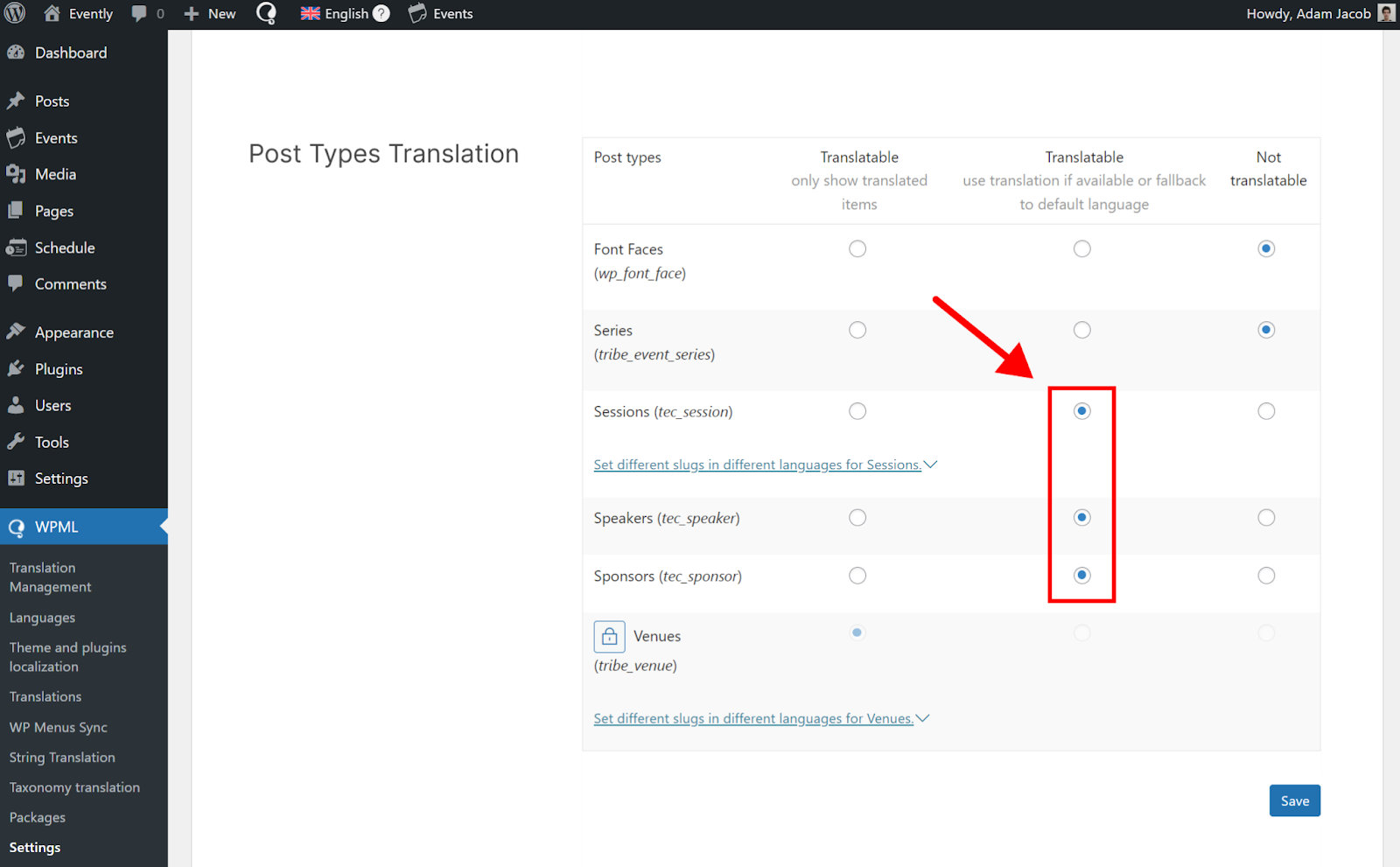
Setting Up Your Profile for Success
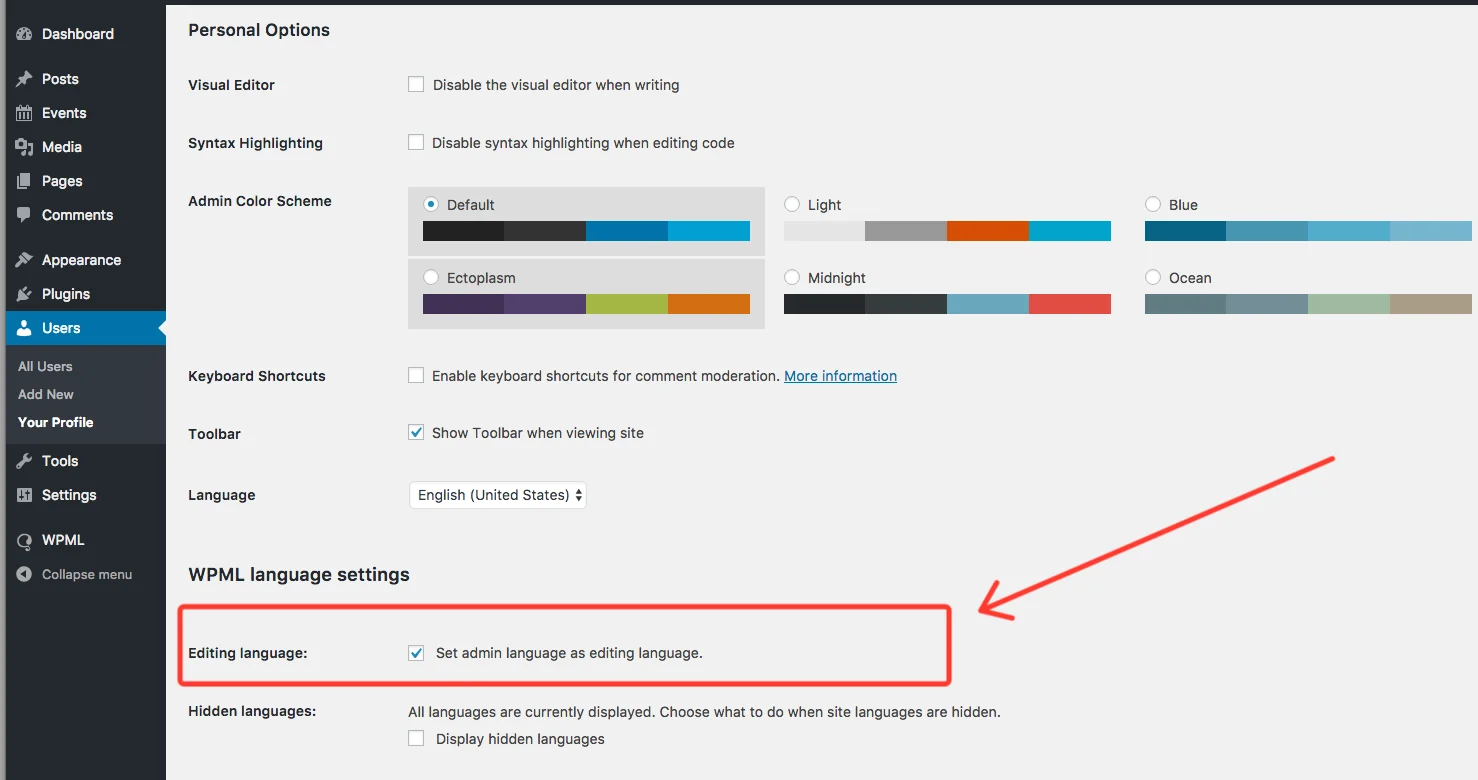
Some of our awesome customers have experienced issues with some of the elements of Events, Venues, and Organizers not being translated properly when toggling between languages.
Before this happens to you too, we highly recommend:
- Heading over to your profile
- Look for the WPML language settings section
- Make sure you check the “Set admin language as editing language.” option.
Emptying the WPML Cache and Preventing 404 Errors
Starting with version 3.5.3, WPML uses caching to offer awesome performance on multilingual sites.
With that in mind, sometimes this can also cause 404 error messages, especially after one of the following changes:
- Upgrading one of our plugins
- Activating a WPML option such as “Slug translations”
To resolve this, here is the recommended procedure:
- Go to WPML → Settings
- Disable Slug translations and save
- Re-enable Slug translations and save
- Go to Settings → Permalinks and flush permalinks
These steps will flush the WPML cache and avoid 404s errors in the calendar.
If that still does not work, after a quick database backup, try deactivating and reactivating all plugins related to The Events Calendar.