
One customization request we’ve seen come up regularly is how to add post content to the Events Calendar widget. Here we’ll take a look at how to do just that.
The Scenario
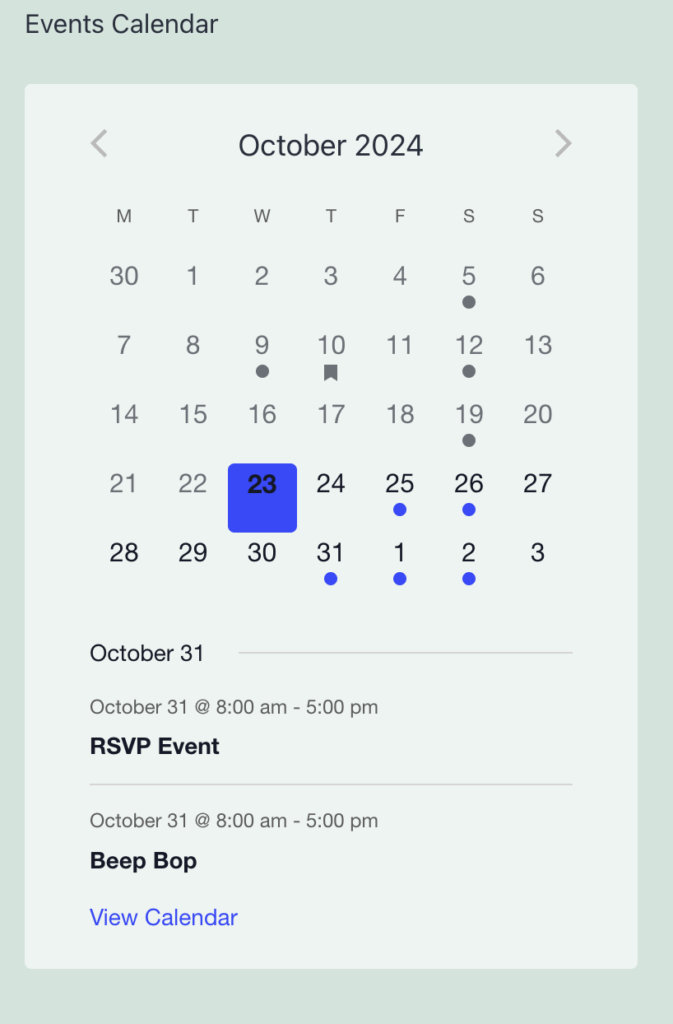
Let’s say we have placed the Events Calendar widget in the sidebar of a page. We can expect to see a lot of information about our events, including the dates, times, location, and more, depending on our widget settings.
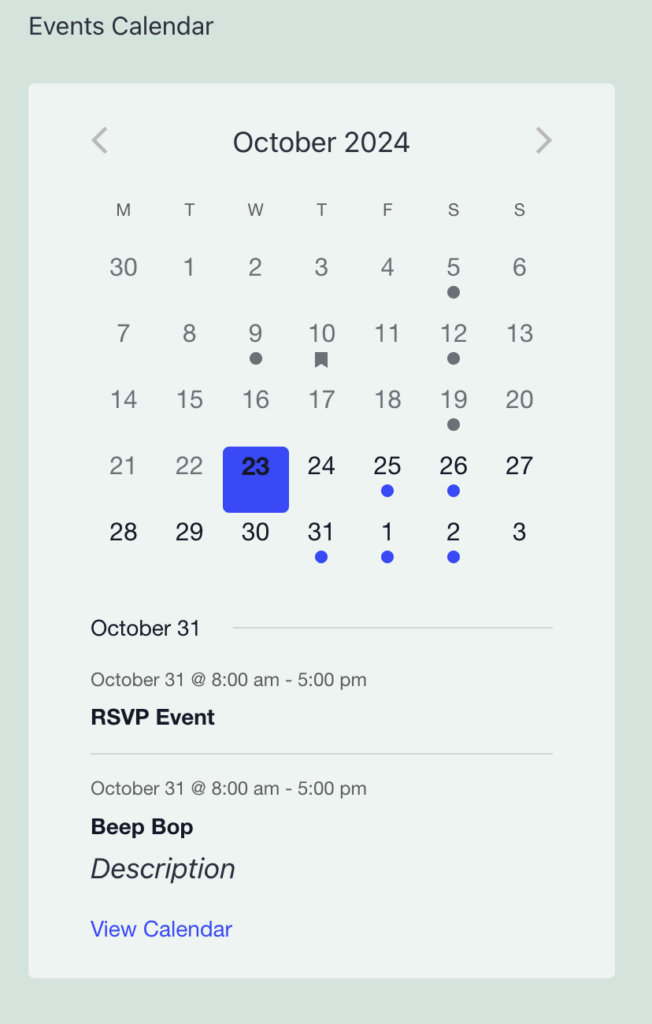
That’s nice and dandy, but what if we want to include a little more information about our events? Specifically, let’s find a way to add the event’s excerpt below the dates.
Before:
After:
How it’s Done
The key here is that we can use the default WordPress function for the_excerpt() to display content from the event directly in the widget. For this use case, we will be changing the mobile view templates, so please note that this will affect the widget and the mobile month view of your calendar.
This will require a template override. If you’re new to overriding calendar templates, then it’s a good idea to check out our Themer’s Guide, which will walk you through the process step-by-step. The basic idea is that we will be creating a copy of one of the plugin’s templates, then adding it to our theme files. This allows us to override the template without touching the core code of the plugin.
- Make a copy of the Mobile View’s mobile-event.php file. This is located in
plugins/the-events-calendar/src/views/v2/month/mobile-events/mobile-day/mobile-event.php. - Make a new folder in your theme directory. Call it tribe.
- Make a new folder in that one. Call it events.
- Make a new folder in that one. Call it v2.
- Make a new folder in that one. Call it month.
- Make a new folder in that one. Call it mobile-events.
- Make one last new folder in that one. Call it mobile-day.
- Add the file. Drop the copied mobile-event.php file in that last folder.
Presto! Now that the template is in our theme directory, we can modify to suit our needs. In this case, we will add this:
<?php the_excerpt(); ?>…right below the single event cost. As of this writing, that is after Line 30 of the template.
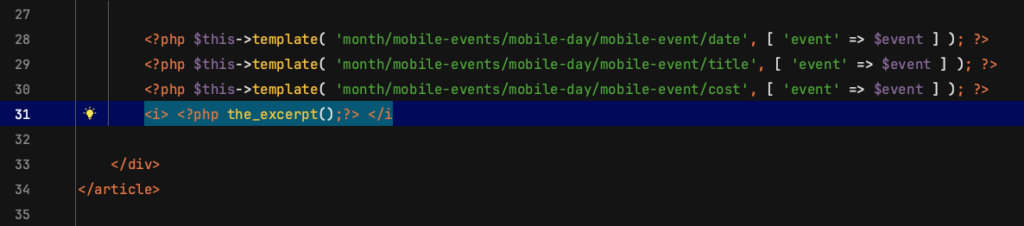
Note – we have added some italics, but you can style this however you see fit. Now, we can save our work, head back to our widget and see the event’s excerpt displays with the rest of the event’s information. Nice work!